The Electric Educator: Apps
Showing posts with label Apps. Show all posts

Tuesday, May 23, 2017

These are the tools I pay to use

These are the tools I pay to use, John R. Sowash, ElectricEducator.com


I am a big fan of free classroom tools. Most of the tools that I recommend are free. But sometimes you really should pay for the "pro" or "premium" version of a tool that you use on a regular basis.

There are two reasons you should pay for a tool:


  1. To save time
  2. To support the tool so that it sticks around

I know that teacher salaries are meager (believe me; I made less than $30k for the first four years of my career!). And I am not suggesting that you pay for everything, but it's funny how we are comfortable spending $4 for a cup of coffee, but won't pay $100/year for something we use every day.


These are the tools I pay to use


Screencastify - $24/year

Screencastify is a screen recording tool that works on any device (even Chromebooks!). I use Screencastify to record screen videos, edit them, and save them as GIF files. Screencasting is an essential daily activity for me and the pro version of screencastify allows me to create content quickly and efficiently. Plus, you can't beat the price! This is a tool that I pay for primarily to support the developer.

Pear Deck - $99/year

Pear Deck allows me to create interactive presentations. I use Pear Deck during my workshops and occasionally use it to try to win a demo slam! The premium version of Pear Deck provides a ton of extra features that will save you time like PowerPoint imports and the ability to view students answers via the live dashboard. If you present on a regular basis, Pear Deck is an awesome investment.

Hello Sign - $156/year

I send and receive a lot of contracts. Hello Sign lets me sign and return them electronically. The annual price for Hello Sign is a bit steep considering what I do with it, but it has significantly reduced the annoyance of filling out paperwork.


Canva - $120/year

I just recently upgraded to Canva for work. I should have done so sooner. I have been using Canva to create graphics for my blog and various websites for over a year. I spend a lot of time in Canva. The work version of Canva makes it much easier to organize files and set up branding themes. Money well spent.


MileIQ - $60/year

Tracking mileage is another miserable task. Mile IQ makes it much easier. It uses your phone to track your location and mileage. Swipe left for personal; right for business. Mile IQ easily pays for itself in all of the lost mileage that I can now easily track.


Pandora - $4.99/month

It's pool season and my wife doesn't like commercials. So, we have Pandora premium....for the summer.


Amazon Prime - $99/year

You don't have Amazon Prime? How do you survive? I have five kids. Ordering from Amazon is WAY easier than dragging everyone into a store. Amazon Prime is the best! Worth every penny!

Audible - $14.95/month

I got a monthly subscription to Audible so that I could listen to Audio books in the car. This has been a great investment. Not only have I passed the time on long road trips across the Midwest (and in Chicago traffic), I have actually "read" quite a few books! If you read one book a month, this is a great deal as most new release hardcovers are more than $15.

Remember, time is money. The more time you can save, the more opportunities you have to do awesome, meaningful work.

Paying for something is a vote of support. When you support a product with your dollars you communicate to the developer that they are providing something of value to users.

What products have you "voted" for with your dollars? Leave me a comment and let me know if I am missing out on something awesome! 

Thursday, March 9, 2017

4 Reading Month Activities

4 Reading Month Activities | John R. Sowash

March is reading month! Reading and writing are foundational skills; There is nothing more important. However, in this age of constant access to multimedia, motivating students to read can be difficult. Here are 4 ideas for encouraging your students to read. 

Note: If you were a subscriber to my email list, you would have received these four ideas in your inbox! Each month I send out an email with recent EdTech updates and an original article focused on using technology in the classroom. Subscribe below!

3 Act Story Challenge


After your students have finished a book, give them an index card. On one side, have them write the title and author of the book along with 3 key moments (a very simple outline). No more than 3!

Note: you can skip the writing part for younger students.

On the back, ask the student to draw a simple 3-act story. You can also use this template.

When finished, hang the picture card in the classroom so only the pictures are visible. Provide small, colorful sticky notes nearby and allow other students in the class to guess the title by writing it on a sticky note and putting it on/near the drawing.

3 Act Story

Note: the 3 Act story challenge is a well established genre. This idea could be expanded into a full lesson to teach elements of plot and story structure.

eBooks with a Soundtrack


Looking for an immersive reading experience? Check out the free eBooks from BookTrack Classroom! This free classroom service enhances written text with sound effects and background music to set the mood. Check out The Raven by Edgar Allen Poe (tip: don't read it in the dark).

Booktrack Classroom
Not only can you read books using BookTrack Classroom, you can also create your own stories. Motivate your students to write by allowing them to enhance their written work with BookTrack Classroom. Copy / paste something you have written into BookTrack Classroom and add background music and sound effects to make your written work jump off the page.

BookTrack Classroom is integrated with Google Classroom which means it is easy to share student stories.

Note: There are two version of this tool, a commercial one and a classroom version. I recommend creating an account using BookTrack Classroom.

Live Reading Chart


Keep track of how many books and pages your class (or school) has read by taking advantage of the LIVE chart and graph feature of Google Sheets.
  1. Have students log their reading using a Google form (like this)
  2. The data that is collected feeds into a Google Sheet (like this)
  3. Create a chart that tracks pages and books read. (like this)
Embed the chart into a Document, Presentation, or Google Site and watch it grow!

Live reading chart | John R. Sowash

Interested in setting this up for your school? I did all of the hard work for your! Click here to make a copy of everything you need!


Note: due to limitations with the new Google Sites, you won't be able to make a copy of my site. Setting up your own will only take a few minutes.

Family Note: My wife challenged our 2 oldest kids (ages 8 & 6) to read 100 books. She calls it the "Donuts with Dad reading challenge."
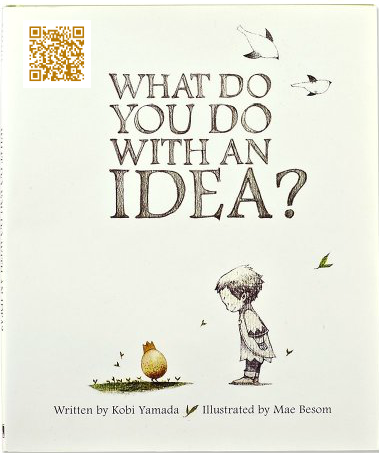
What do you do with an idea? Video Book review

Video Book Reviews

If you don't have enough time to work on a written book report, have students record a short 30-60 second video book review. I recommend using Screencastify to quickly record a video and save it to Google Drive.

Generate a QR code that points to the video (instructions). Attach the QR code to the book. Students can use ScanQR, a free Chrome App, to scan QR codes and watch the student video.

I tested this out with my three oldest kids:

If you have other fun and effective ways to get students reading and writing I would love to hear about them! Send me an email or hit me up on Twitter!

Thursday, January 12, 2017

ThingLink VR Bootcamp in Michigan!

Virtual Reality is a promising classroom tool. Being able to transport your students to a different time and place is pretty remarkable! 
Right now VR is primarily a passive activity - you just consume content. While that is okay, I much prefer technologies that allow teachers and students to create and share with one another.
ThinkLink is developing tools that can be used to CREATE a custom VR experience. Here's an example of something a Science teacher might do to teach students about biomes.
I played with the ThingLink VR editor this past summer and was impressed. I reached out to them to see if they would be willing to come to Michigan to lead an event to help get more educators involved in CREATING VR content.
ThingLink is coming to Brighton, Michigan on February 3 to lead their VR bootcamp. This full day of training will show you what ThingLink can do and how it can be used as a teaching tool. Everyone is welcome, even if you haven't used ThingLink before.
Registration is $175/person and INCLUDES a full year of the premium version of ThingLink ($129/year). We'll also give you a nice lunch and good company! 

To register, click here

Not from Michigan? ThingLink has bootcamps scheduled around the country. Here is their current schedule. You can also register to host an event! 

Thursday, December 15, 2016

Lesson Ideas for #Chromebook Classrooms: Collaborative #Math Study Guides

Note: this lesson idea is an excerpt from my book, The Chromebook Classroom. If you find this lesson helpful, you will enjoy the 40+ lessons from the book! Pick up a copy on Amazon or at chrmbook.com!

The best way to learn something is to teach it to someone else! For this activity, students who need to learn materials for an upcoming test will use the Ziteboard whiteboard extension to solve a math problem while recording their solution using Screencastify. Students will add their recording to a class Google Slides presentation so that everyone can review this problem type.


Lesson Overview

Give each student a different problem to solve. Provide them with time to review and practice the steps. If students are unfamiliar with Ziteboard and Screencastify, you may need to provide additional time for them to practice with these tools.

Students will use Screencastify to record the steps required to solve their assigned problem. Ziteboard provides a writeable surface ideal for showing work. Ziteboard works great on touchscreen chromebooks. Screencastify will record both the screen activity and the students voice.

The finished Screencastify recording should be saved to the students Google Drive account. Students will need to make the recording visible to "anyone with the link".

The final step is to have students place their links into a class Google Slides presentation. This can also be done in Google Sheets or Docs; however, Google Slides will allow you to assign each student their own Slide page.

Each student now has access to a student-generated study guide with dozens of practice problems!

Resources

Thanks to Carrie Moeggenberg, Instructional Technology Coach, Ludington, Michigan for submitting this lesson idea!

Friday, October 14, 2016

Replacing the Research tool in Google Docs


By now you may have noticed that the "Research" tool in Google Docs, Slides, and Drawing has been replaced by the "Explore" tool. While Explore adds a few nice features (see my previous post for a complete overview), it has removed the citation feature which was heavily used by K-12 teachers.

There has been a fairly vocal outcry from educators because of the removal of the research tool. If you are disappointed that the research tool is no longer available you can send your suggestions to Google by opening a Google Document and visiting help > Docs Help > Send Feedback. 

Google does seem to be listening to this feedback as a the Docs team has created a survey exploring the use of the research tool. You can complete the survey here.

**Update the survey above is no longer accepting responses. The Docs team is reviewing feedback and considering a solution.**

While I too am a bit disappointed that the Research tool has been removed, there are a few facts to remember: 
  • The "citations" generated by the Research tool weren't really citations, they were footnotes.
  • Sometimes all you got was a link to the source, not the author, date, publication, etc.
  • While the Research tool gave you the option to switch between MLA, APA, and Chicago style, the formatting of the "citations" weren't in the correct format anyway. 
  • The research tool didn't create a bibliography or works cited page. 
Yes, the Research tool was a great place to start and I would love to see it brought back. However, there are some even better ways to handle citations and bibliographies that you can use right now!

EasyBib - Add-On for Google Docs

EasyBib has developed a free add-on for Google Docs that make it super easy to cite books, articles, and Websites. Just enter the URL, title, or ISBN number and EasyBib does the rest. The add-on will create a works-cited page (bibliography) for you and supports dozens of citation styles (most of which I have never even heard of!). Get started by connecting the add-on here

EasyBib also offers a Chrome Extension, however it requires setting up an EasyBib account and is not as easy to use as the other citation extensions listed below. If you are an EasyBib user, or your school has paid for the premium version of EasyBib, the extension may be of value to you. 

Cite This For Me - Chrome Extension


Visit any website and click the "cite" button and you will receive an automatically generated citation in your preferred format. Click "add to bibliography" to collect all of your sources and then copy/paste or download your list for further use. One neat thing about Cite is the fact that you don't have to log in or create an account to collect your resources (although the recommend that you do.). I tested this extension on several obscure websites and it did a great job. It even prompts you to enter missing information that it is unable to find. 

Apogee Citation Creator - Chrome Extension


Apogee is a super light-weight extension tool. Click the button and get your citation. No configuration, settings, or advanced options. Copy the citation and paste it wherever you need it. Apogee isn't as accurate as Cite This For Me (sometimes it misses the author), but it gets the basics. 

Citation Machine - Website

For very specific or obscure citations (Podcasts, YouTube Videos, etc), you may need to create a manual citation. I have used Citation Machine for many years (it helped me earn my M.Ed. degree!). It has been updated a bit, but is still dead simple to use and supports hundreds of different source material. Citation Machine doesn't automate the citation process, but it guides you through and creates perfect citations. 

I have looked at four possible replacements for the Research tool. Even if Google brings back the Research feature (we can hope!), you will need one ore more of these tools to create a true, properly formatted citation. 

I know there are many more citation tools out there. If you have a favorite that you would recommend, please leave a comment below!

Sunday, August 14, 2016

Get your MeL Chrome Apps!

MeL is now available in the Chrome Webstore

I'm excited to announce to my fellow Michigan Educators that the Michigan eLibrary (MeL) has published six of their databases as Chrome Web Apps! It's now easier than ever to give your students access to high quality research databases.

Six different apps are available in the Chrome Webstore:


MeL - Michigan eLibrary Logo

MeL.org


Access the entire Michigan eLibrary which features all of your favorite MeL databases and resources including MeLCat.

MeL Teens Gateway

MeL Teens 

Access to resources specifically for grades 6 through 12+ including homework help, recommended books, and college planning and test prep tools.


MeL Kids 

MeL Kids GatewayResources specifically designed for young learners, pre-K through 5th grades,  including homework helpers, stories, games, and information about the state of Michigan!

MeL College Bound

Resources to help you select, prepare and pay for college.

MeL Michigana

Michigan is a great state! Learn more about it with access to 15 diverse research digital collections, giving access to primary resources such as photographs, family history, and podcasts.


MeL Business 

MeL Business Gateway
Support and resources for entrepreneurs and small businesses as they contribute to the Michigan and global economies.


MeL and Chromebooks

The MeL Chrome Apps make it easy to access MeL resources on Chromebooks. Schools that are taking advantage of Chromebook management features can automatically push out the MeL Chrome apps to all of their students and pin them to the shelf for easy access.


Access MeL apps through the Chrome App Launcher (search key)


Instructions: To push out apps to students, a domain administrator will need to log into the Google Apps Management console and visit Device Management > Chrome > User Settings > Force Installed Apps & Extensions. Search for and select the MeL apps you wish to push to students. Apps will appear the next time your devices sync with the management console.

Pin MeL apps to the Chrome shelf for instant access!


Instructions: Make accessing MeL apps even easier by pinning favorite apps to the Chrome shelf. After deploying an app (see above) have a domain administrator use the Google Apps Management console to visit Device Management > Chrome > User Settings > Pinned Apps & Extensions to configure the pinned apps.

Place all of the MeL apps into a folder to keep them organized!

Instructions: Create collections of apps by dragging and dropping apps on top of one another. These collections can be named (i.e. “research tools”) for easy identification. Collections can only be created by individual users and can not be centrally managed by domain administrators at this time.


Resources for Media Specialist and Librarians:


Make a copy of this Google Doc to distribute this information to the teachers at your school!


Monday, August 1, 2016

13 FREE VR Apps for the Classroom


Virtual Reality (VR) has great potential for the classroom when used effectively by experienced and creative teachers. VR is also a very new and evolving technology. To help you get started with virtual reality in your classroom, a group of educators I worked with this summer put together a list of 13 FREE VR apps that are classroom appropriate.

You can view the list here: https://goo.gl/1gp5pQ


Feel free to copy and share. 

Do you have a favorite app that we left out? Please let me know by leaving a comment on this post!

Thursday, February 18, 2016

Chrome App Recommendation: Booktrack Classroom

Wouldn't books be more interesting if they had movie soundtracks and sound effects? With Booktrack Classroom they can! Paste in the text of your story and then add a sound track, sound effects, and more! Publish your story to a class or share with the world.

Access Booktrack Classroom from the Chrome webstore!

Note: there are TWO Booktrack apps, a consumer version and a education version. The education version is 100% FREE (for a limited time) and allows a teacher to setup and manage a classroom of students. Booktrack Classroom also features a Google Classroom integration!

Check out the Booktrack that I made from my previous post, the Death of Google Play!


Sunday, May 18, 2014

5 Formative Assessment Tools for Teachers

Research indicates that student learn more effectively when they are engaged. Incorporating regular checks for understanding, polling questions, exit tickets, and interactive mini-assignments is a great way to make sure that students don't check out during a lesson. This type of assessment is called formative assessment.

Formative assessment is non-graded activities that are used to inform and plan future instruction. Formative assessment can take the form of a quiz, an exit ticket, a simple project or task, or a thumbs up/down response.


Formative assessment provides teachers with timely feedback to determine if a lesson was effective, identifies students who may need additional help, and suggests content that may need to be reviewed. There are several wonderful tools that can help teachers incorporate regular, spontaneous, and engaging formative assessment without disrupting the flow of the class period. These tools will keep students engaged, provide actionable data, and give students a means of asking for help and guiding instruction based on their needs. 

Here are five formative assessment tools that can help you identify the needs in your classroom and help you plan future instruction.

Need a quick overview? Check out this handy head-2-head comparison!

Google Forms
A long standing favorite of teachers, Google forms provides a simple method of collecting data from students. From a "mood check-in" to a post-lesson quiz, forms is a very flexible assessment tool. The built in "summary of responses" feature allows teachers to quickly view class statistics with no advanced setup.

Socrative
Socrative is a web-based student response system that can be accessed on any device with an internet connection. Teachers can create import a quiz and push questions out to students through a unique class code. Once a quiz is created, it can be delivered to students in a variety of formats including the old-school "Space Race" game. Socrative also provides the ability to spontaneously create questions and exit tickets.

Near Pod
Near Pod is a visually appealing product that combines a traditional slide-based presentation tool with a student response system. Teachers build slide decks with interactive content (multiple choice questions, drawing activities, matching, web links, etc) and deliver them to students through a unique session code. The teacher controls the pacing and advancement of the slides turning every device into an extension of the teachers device. NearPod boasts a tight iOS integration which makes it a great fit for iPad schools. Near Pod also offers a large database of existing content, some which is free and some which must be purchased.

Geddit is a student monitoring and feedback tool designed to help you intervene at the right moment. Geddit is 4Square for the classroom! The "check-in" feature allows students to indicate their current level of understanding in real-time. The teacher view displays students by their "mood," enabling real-time intervention and project groupings. Geddit can also push questions to students to check their understanding.

Pear Deck [beta]
Pear Deck is an interactive presentation tool with deep Google Drive integration. Teachers create slide-decks with static and dynamic content. You can even import your existing PowerPoint or Google Drive presentations! Interactive slides can be multiple choice, short answer, numeric, or dragable. Students responses are recorded and can be reviewed by the teacher to determine the level of student understanding.

You can request Beta access to Pear Deck by clicking here (you will need to login to your Google Apps account). Let them know John Sowash sent you and you will get bumped to the front of the line!


Need a quick overview? Check out this handy head-2-head comparison!

Tuesday, July 23, 2013

5 Chrome Settings that will Make Teachers Smile

Google Chrome has been my browser of choice since it was launched in 2008. Chrome redefined the browsing experience for users and continues to do so today. Many new features in Explorer, Safari, and Firefox are responses to Google Chrome.

Chrome is an awesome browser for the classroom. Here are my five favorite "tricks" for getting more out of Chrome. These tips do not require any special plugins, extensions, or applications. They are available for anyone running Chrome OS or the Chrome browser for Windows or Mac. 

To enable any of these features, click on the "hamburger" (the three horizontal lines in the top right corner of your Chrome browser window) and follow the instructions.

1. Launch Tabs on Startup Most of us spend the majority of our time on the Internet on the same 3-5 websites. For me, it's Gmail, Google Drive, and Google Calendar - my productivity essentials.
You can ask Google chrome to automatically load your favorite websites each time you start

Chrome. No need to manually visit these pages. Open Chrome and you're ready to go! To enable this feature: Settings > Show Advanced Settings > On Startup

Tip 1: Don't auto-load too many pages! I recommend you keep it at three or less!

Tip 2: If you use Chromebooks in your classroom with students, you can set which pages load when a student logs on to their Chromebook. This feature is controlled from within the Google Apps dashboard so you'll want to make your IT director a pan of brownies and ask him to turn it on.

2. Bookmark Sync
Teacher love bookmarking pages. Now you can synchronize your bookmarks across Chrome! You can use Chrome on your PC, Mac, Chromebook, iPhone or Android tablet. As long as you sign in to chrome, your book marks will be there when you need them!

You must sign in to Chrome to enable this feature: Settings > Sign in to Chrome. Make sure you check the box for "bookmarks". You can adjust your Chrome sync settings at any time by going to Settings > Users > Advance Sync Settings

3. Tab Sync
Have you ever pulled up a web page on your home computer, gone in to the office and wished you could remember the web address of the page back at home? With tab sync, you can view any open tab on any of your devices and open them with a single click. Pull up a map on your laptop, jump in the car and open up the map on your phone!

You must sign in to Chrome to enable this feature: Settings > Sign in to Chrome. Make sure you check the box for "open tabs". You must repeat these steps on every device you wish to use the tab sync feature. 

After enabling tab sync, when you open a new tab in Chrome, you will see an option for "other devices" where all of your open tabs will be displayed. The screen shot below is from an iPhone, showing tabs on several other devices.


4. Zoom
The ability to zoom in on a specific part of your screen is really helpful when instructing students. Using the + / - buttons is okay, but presents some problems. For years, I have appreciated the Mac OS feature that zooms in wherever my mouse pointer is. Now that feature is available for your Chromebook as well!

To enable this feature, visit Chrome settings and search for "accessibility"
To enable this feature, access chrome settings and search for "accessibility". You will want to enable "screen zoom" and "keep magnifier focused on center of screen." To use this feature, hold down the Ctrl and Alt keys and slide two fingers forward / back on your track pad.

5. Settings Search
Do you need to reset your pass-phrase, adjust your trackpad sensitivity or delete an extension? Don't worry about remember where that button is, just search for it! Chrome user settings can be quickly searched. It makes adjusting settings super easy!

Nothing to enable here! Just go into settings and look for the search box! 

Every month I send out an email newsletter highlighting ideas, updates, and new Apps and Extensions for Chromebooks. If this sounds like something you would appreciate, you can sign up here!


Friday, April 12, 2013

Free Plagarism Checker for the Classroom

The internet has given us unlimited knowledge and information at an instance notice. Generally, this is a good thing, but sometimes students get lazy and use the web in ways that are inappropriate in an academic setting -- plagiarizing work from web sources.

The benefits of the web far outweigh the risk of inappropriate use. As educators we should strive to train our students on acceptable web behavior including the habit of summarizing, quoting, and citing sources. Despite our best efforts, some students choose to bend/break the rules of fair use. 

It is important for educators to be aware of the tools and resources that are available to monitor and deter cheating in the classroom. Turnitin.com is a tool that can be used to check written work for plagiarism. It is a very sophisticated and effective web resources that can quickly scan and find portions of a paper/essay that have been copied from the web or another paper. The downside to turnitin.com is its price, which is prohibitive for many individual teachers and many schools. The service also requires a bit of legwork on the part of teachers and students. 

A free, simple, alternative that I have been using for several years is "The Plagiarism Checker" from dustball.com. Paste in a bunch of text from a suspect paper and The Plagiarism Checker will quickly perform a Google search of multiple portions of the submitted text in an effort to match 

The basic service is free to use. A more advanced and accurate checker is available for $8/month. 

I have personally used this tool on student work. Some students were vindicated while others were busted. 


Saturday, December 22, 2012

Review: Ask3, a Free iPad App by TechSmith

I'm a big TechSmith fan. They have produced some great software titles, are strong supporters of education and teachers, and are a Michigan company!

I'm always eager to see what they will come up with next. A little over a year ago TechSmith developed ScreenChomp, a screencasting app for the iPad. This year, they continue their push into mobile computing with a brand new iPad app called Ask3 (free).

Many teachers are familiar with with saying "ask three, then me;" a common ploy to encourage students to help one another and reduce their reliance on the teacher as only person who can answer a question in the classroom.

The Ask3 app attempts to enable that same philosophy through technology. Ask3 is a mashup of a screencast and a threaded discussion board.

The first great thing about Ask3 is the fact that students do NOT need an email address of any type in order to use it! This is a step ahead of many apps! Teachers setup a class and generate a unique 5 digit code which students use to get into the appropriate class.

There are three things you can do within Ask3: Create, view bulletin board, or view class.

Create: Starting with a blank canvas, you can add a photo and annotate that photo with lines, arrows, and simple shapes. Pres the record button to capture your annotations and audio narration in real time. Upload when complete.

Bulletin Board: This is where you can see what has been shared with the class. Students can watch posted videos and add text comments to the recording. The neat thing is that the text comments are linked to a specific part of the timeline, allowing students to ask a question related to a specific part of the video.

If a text comment isn't enough, students can begin their own screen cast recording, drawing on the screen and ask their question verbally instead of through written text (great for more complicated questions!). Like the text comments, these video responses are tied to a specific segment of the original video timeline.

Class: simply shows who is currently a member of the class and provides the unique class code.

Ask3 has great potential to encourage collaboration between students and instructors. The Flipped Classroom was a very popular movement in 2012. Many teachers have flipped their classrooms already. Watching video lectures at home isn't very collaborative or interactive. Ask3 provides a powerful way for students to ask questions while watching the lecture and would enable instructors to respond outside of the classroom, or provide a running list of questions to be addressed the next day during class. Furthermore, students can respond to each others questions, either answering them, helping out a fellow student, or confirming that they had the same questions as well. In any case, Ask3 can turn the solitary drudgery of watching a pre-recorded lecture into an engaging class discussion, outside of the classroom!

Ask3 has only been publically available for a few months. It's a great MVP (minimum viable product) right now. Here are some suggestions on how Ask3 could be improved.

Drawing: 
  • Allow text input. My screen handwriting stinks! 
  • Allow multiple screen "pages" so that I can switch back and forth between several diagrams. 
  • Allow video insertion via the iPad camera. I would love to start by giving a personal introduction where students can see my face. 
Bulletin Board: 
  • Better "threading": I would like to see, at a glance, how many comments were made on a video. I would love to be able to expand the comments to read them all at once and even to play attached videos. 
Classroom: 
  • Ability to click on a student and see how many comments/videos he/she has posted. 
  • Ability to block or remove a student from the class. 
General Suggestions: 
  • Where do these videos go? It would be great if they would link up to my screencast.com account. 
  • Ability to upload/share an existing video? 
  • Ability to access Ask3 from a computer (web app/extension?)
  • Plugin integration for popular LMS' (i.e. Moodle, BrainHoney, BlackBoard, Haiku, etc)


Saturday, June 23, 2012

Chrome Web Apps: TweetDeck


Google Chrome is the world's second most popular web browser. Chrome features fast and reliable access to the web. This series of posts highlights Chrome extension and web applications, which enhance and extend what can be done with the Chrome web browser. 

Twitter, your source for Professional Development! 
As an educator, the social media network Twitter has become my #1 source for professional inspiration, encouragement, development, and interaction. Twitter is free, simple to use, and is a great democratizing force. If you are not a Twitter user, I recommend that you check out this post for a full overview of this amazing network!

Very few people access Twitter via twitter.com. Although the web interface has improved, it still leaves much to be desired. Most users take advantage of one of numerous Twitter Clients which enable them to customize their Twitter experience in order to squeeze the maxiumu value out of the network.


The TweetDeck Chrome Web App harnesses the power of HTLM5 for desktop application-like features

TweetDeck is one of the oldest and most popular Twitter clients. I was an avid TweetDeck user for both Mac and PC for several years. Recently, however, I made the switch to TweetDeck Chrome Web-App.

Advantage of Web-Apps over Applications: 
  • No need to install the application on every device you own. 
  • All of your clients sync "in the cloud" ensuring that your settings, themes, ad-ons, etc are consistent no matter where you access the program. 
  • Automatic updates
TweetDeck for Chrome

TweetDeck has long been the leader in Twitter clients which is probably why Twitter, Inc. bought TweetDeck for $40million in 2011. The TweetDeck web App looks and feels very much like the application client. Logging into your TweetDeck account automatically syncs your user settings to the web App, a nice feature that saves on setup time. There are a few features of the TweeDeck web app that I really like: 
  • Easy to connect multiple Twitter accounts. 
  • Easy to tweet from any of your connected accounts. 
  • Ability to schedule tweets
  • List-support
  • Add columns from multiple accounts. 
To install the TweetDeck Chrome Web App, click here or open a new tab in the Chrome browser and click on the "Chrome Web Store" icon. Once in the Web Store, search for "TweetDeck".