The Electric Educator: chromebook
Showing posts with label chromebook. Show all posts

Wednesday, August 2, 2017

Don't let your students do this with their Chromebook!

Don't let you students do this with their Chromebook!

This week I was providing training for a school. We had a cart of Chromebooks to use for the day. I pulled out one of the devices to take a look before we got started. Watch this video to see what happened when I turned it on.


Signing into Chromebooks is easy; signing out seems to be very difficult. 


Students and teachers will forget to sign out. Don't gamble; just assume it will happen at some point.

School administrators can configure Chromebooks to auto lock when the lid is closed. This will prevent uses from remaining signed in even after they have returned their device to the cart.

Here's how to auto-lock your Chromebooks: 


  1. Log in to the Google Admin console
  2. Visit Device Management > Chrome management > user settings > security
  3. Adjust your settings to look like this: 

Chromebook auto lock settings Google admin console


These settings force "lock screen" when the device enters sleep mode. Sleep mode will occur after 12 minutes of inactivity OR lid close. 

Lock screen requires the user to enter their password to unlock the device. If you are not that user, you will need to restart the computer to get to the normal login screen. 


This simple configuration can save a lot of trouble!


Thursday, July 6, 2017

How to Teach with Chromebooks


“How can I use Chromebooks in my classroom? There must be more than just Google Docs and math games!”


This is a question that I hear a LOT. The Chromebook is an amazing classroom tool, but most teachers are only using a fraction of their potential.

Starting July 15, 2017 I am leading three virtual courses on teaching with Chromebooks. Each course will take place in Google Classroom and features practical tips for using Chromebooks regardless of the grade or subject that you teach.

Each course has a specific audience in mind - from the teacher who has never used a Chromebook to the one who only uses Chromebooks.

The cost for the course is $2.00 + the cost of my book, The Chromebook Classroom (Print is $24.95, digital is $9.97 via Amazon). The $2 course fee ensures that you have some "skin in the game" and will be motivated to participate in the course!

I want to help you teach with Chromebooks this year! Which course is right for you? 


Course 1: Developing your Chromebook Classroom - REGISTER HERE

Ideal for anyone teaching grades 6-12 or supporting the use of Chromebooks at the middle or high school level. This is an beginner / intermediate level course for anyone with limited or no experience using Chromebooks. We will cover essential tips and shortcuts, learn about apps and extensions for the classroom, and uncover 4 specific ways to use Chromebook for learning. 

A complete outline of this course is available here.

Start Date: July 15, 2017
End Date: August 5, 2017
Skill Level: Beginner / Intermediate
Format: Online via Google Classroom
Cost: $2.00 + Book


Course 2: Developing your Elementary Chromebook Classroom - REGISTER HERE

This course is specifically developed for anyone teaching in grades PK - 3. Elementary students CAN use Chromebooks! We will discuss strategies for getting students logged in quickly, identify the key skills you will need to help your students develop and explore Chrome apps and extensions for younger grades. This course is ideal for anyone with little or no experience teaching with Chromebooks. 

A complete outline of this course is available here.

Start Date: July 15, 2017
End Date: August 5, 2017
Skill Level: Beginner / Intermediate
Format: Online via Google Classroom
Cost: $2.00 + Book


Course 3: Developing Multimedia Projects with Students - REGISTER HERE

We remember best when we create. The purpose of this workshop is to help you begin incorporating multimedia projects into your classroom. We will explore project design best practices, the top Chromebook compatible web-based tools, and strategies for evaluating student work. This is an intermediate / advanced level course. You should be familiar with Chrome Apps, Extensions, and the basic functions of your Chromebook before you enroll in this course. 

A complete outline of this course is available here.

Start Date: July 15, 2017
End Date: August 5, 2017
Skill Level: Intermediate / Advanced
Format: Online via Google Classroom
Cost: $2.00 + Book
Register here

I am passionate about helping teachers create awesome classroom experiences for students. Chromebooks are the best tool I have ever seen for doing this. I want to help you this school year! Sign up and join me starting July 15!

Question? Take a look at the course FAQ document. If you don't see an answer there, leave me a comment! 

Monday, May 22, 2017

The future of Android on ChromeOS

The future of Android on ChromeOS

Google I/O is an annual developer conference organized and hosted by Google. I/O is an important event during which Google announces features and products that are in development. Some of these products and features will make their way into the classroom.

Last year during Google I/O we learned that Android Apps would soon be available on Chromebooks. Over the past year we have seen access to Google Play on Chromebooks slowly roll out to select Chromebooks as an option beta experience.

Using Android apps on ChromeOS has been less than awesome. It has been pretty bad. You can read my previous posts on the reality of using Android on Chromebooks.

During Google I/O 2017 Google offered a session for developers called "Android Apps for Chromebooks and Large Screen Devices." Not surprisingly, Google has identified a few big issues that developers need to fix.

You can watch the entire session here, or read my summary below.

Large Screen Optimization

Using an app designed for a small, portrait phone, on a large, landscape screen is not enjoyable. This is the primary experience when using Android on ChromeOS right now. Google received a LOT of feedback from early users indicating that this was a major barrier preventing them from using and enjoying Android apps on ChromeOS.

Considering screen size and orientation is also important for convertible Chromebooks which can be put into tablet mode in either portrait or landscape format. The more developers take these use cases into consideration, the more their apps will be used.

Android Apps for Chromebooks and Large Screen Devices (Google I/O '17) - Via YouTube

Google is recommending that developers optimize their applications for large, landscape screens and take advantage of the larger screen by developing new layouts to display content.

Keyboard Integration

Android Apps aren't designed to take advantage of the keyboard (why would they?). But on a Chromebook you can. Google is recommending that developers build keyboard shortcuts into their apps, just like desktop applications. They demonstrated this feature Lightroom by Adobe.
While keyboard integration might not seem like a big deal, it really is once you realize how often you use ctrl + f (find), ctrl + c (copy), ctrl + a (select all), or use the arrow keys to navigate through selection screens.

Android Apps for Chromebooks and Large Screen Devices (Google I/O '17) - Via YouTube

Stylus Support / Integration

More and more Chromebooks are shipping with an included stylus. The stylus is useless if developers don't take advantage of it as an input device. This means optimizing apps for pressure sensitivity and recognizing a palm on the screen to avoid false input. Google demonstrated the app Squid which is already doing this.

Android Apps for Chromebooks and Large Screen Devices (Google I/O '17) - Via YouTube

What this means for teachers and students

Do you need to care about what is happening at Google I/O or in these developer sessions? Kind of. What Google is telling developers today will make its way into the apps and products that you use tomorrow. 

Today, the experience of using Android apps on a Chromebook isn't very good. But over the next 12 months, as developers optimize their applications for ChromeOS, you can expect the user experience to greatly improve. To the point that you might actually want to use Android apps on your Chromebook!


Thursday, May 18, 2017

What happened at Google I/O 2017?


May 17, 2017 was the opening session of Google I/O, an annual developers conference organized by Google. This is one of the signature public events that Google organizes annually and usually contains some important new products and features that are planned in the next 12 months.

During the 2016 I/O conference we learned about Google Home, Android Apps for Chromebooks, and Google's VR initiatives. You can ready my review of the 2016 conference here.

I watched the 120 minute opening keynote during which Google shared their vision and plans for the next 12 months. Honestly, a lot of it is super nerdy and over my head (the word "petaflop" was used multiple times; and people cheered ).

You can watch the entire 2 hour keynote here, or you can read my summary below. = )

As an educator, I am primarily interested in the features, products, and services that will impact teachers and students in the coming year. My summary focuses on those elements of the keynote.

Machine Learning:

Google continues to work really hard on artificial intelligence / machine learning. Google CEO Sundar Pichai believes we are moving from a "mobile first" world to an "AI first world." Google's work in machine learning is already impacting you on a daily basis:
  • Facial recognition in Google Photos
  • Smart reply in Inbox
  • Better search results
  • Ability to spot and stop spam and phishing attacks
  • Google Assistant
  • Better voice recognition

Google also announced a few new features powered by machine learning:
  • Smart reply is coming to all Gmail users
  • Google Lens can understand visual imagery and location
  • Google Assistant is now available for iPhones

Classroom implications for machine learning: accessing information is becoming easier and easier; even when you don't know what to search for. In the very near future, students will be able to snap a picture or ask a verbal question to find what they need. Finding information is no longer a challenge. Teaching them what to do with that information is the critical skill we need to focus on.

Chromebooks

Interestingly, the only mention of Chromebooks came during the portion of the keynote dedicated to Android. The blending of ChromeOS and Android continues to be a top priority for Google. There are other sessions during I/O that will hopefully yield information about the future of ChromeOS.

Google did mention that Chromebooks now comprise 60% of classroom devices. That's up from 53% earlier this year.
2017 Google I/O Keynote

Virtual Reality

Google has devoted a lot of resources to virtual reality. Specifically, the development of Daydream, Google's VR platform. This year Google quietly included augmented reality into their VR segment. They announced a cool new capability called VPS (Visual Positioning Service). VPS is very similar to GPS in that it helps identify your location. But while GPS uses satellites to triangulate your position on a map within a few feet, VPS uses visual elements in your surroundings to triangulate your position to within a few centimeters.

This ability opens up some really cool possibilities for Augmented Reality (AR). Watch Clay Bavor, Google's VP of VR and AR explain:


Later on in Clay's presentation he also shared an update on Google Expeditions, the VR kit for schools. Over 2 million expeditions have been taken in classrooms around the world. Starting in 2017, Google Expeditions will also support Augmented Reality tours. Take a look:


Expeditions AR is not yet available to the public. You can register your school as a "Pioneer School" here.

While Google I/O 2017 didn't reveal any major new features or services for the classroom, it provided a glimpse at Google continued efforts to organize the worlds information. Machine Learning and Augmented / Virtual reality are top priorities. These technologies will certainly trickle down to the classroom and impact how we teach and the skills that we need to prepare our students with in order for them to be successful. 

Monday, March 13, 2017

Chromebook Prank Guide for Teachers

Chromebook Prank Guide

You spend a lot of time at school. Why not have a little fun! Here are 5 tricks and funny things that you can do with your students, staff, or administrator. Most of them will require briefly accessing someone's Chromebook (without them knowing). You can also make friends with your IT director and apply some of these tricks through the Google Admin Console.

1. Google Gravity

Google Gravity is a spoof Google homepage that “falls to pieces” as soon as you move the mouse. Ask your IT administrator to configure your students Chromebooks to automatically load the Google Gravity page any time students click the home button in Chrome.

Set up this prank by going to Chrome Settings > Appearance > and changing the default home page to the link below.

Google Gravity Link: http://mrdoob.com/projects/chromeexperiments/google-gravity/ 

2. Cenafy

Cenify and Surprise Cena are Chrome Extensions that will add excitement to someone’s life. When installed, a picture of pro wrestler JOHN CENA accompanied by his theme song will randomly appear on your screen. It only happens every few minutes making this an even better extension! This is a great prank to play on your principal. It will take them all day to figure out why JOHN CENA has taken over their computer!

Install Cenify and Surprise Cena from the Chrome Web Store.

Bonus: head over to the Chrome web store and read through the 500+ reviews for the Cenify extension. They are hilarious!


3. Fun with Wallpaper

The Google Admin Console has the ability to push out wall paper to the Chromebooks managed by your district. This provides all sorts of entertaining possibilities!

  • Broken Screen - find an image of a shattered computer screen and push it out to all of your students. They will freak out when they think (for a second) that their screen has shattered!
  • iPad - Install a wall paper on your Chromebooks that looks like an iPad home screen.
  • Staff Watching - take a series of funny pictures featuring teachers and staff members and use them as student wallpaper. 
To push wall paper to your Chromebooks sign into the Google Admin Console and visit Device Management > Chrome >  User Settings > General

4.  NOPE

NOPE is a Chrome Extension that provides an instant exit. 

Click on the NOPE extension if you are stuck in a never ending conversation. NOPE will call your phone, giving you an instant out. Even better, when NOPE calls, you will receive an automated series of instructions that you act out (“place your hand to your mouth and gasp slightly”, say “Oh no, I’m sorry to hear that!”, etc). 

On April 1, you can fake all kinds of important phone conversations in front of your students or staff.  

You can install NOPE from the Chrome Webstore

5.  April 1 Prank Toolkit

This is my personal favorite. 

April First Prank Toolkit is another Chrome Extension. This one is super sneaky. You can install it at any time, but configure it so that it only works on April 1. Options include turning images upside down on websites, hiding the mouse cursor, making text blurry, or rendering everything in black and white. 

You can install the April 1 Prank Toolkit here.  

Got another fun prank? Leave me a comment! 

Tuesday, March 7, 2017

When Extensions Go Bad

When  Chrome Extensions go Bad | John R. Sowash

I am a big fan of Chrome Extensions. I share my favorites on Twitter and this blog.

Extension can control and access a lot of system resources, that's how they can do so many cool things! With that access comes the possibility of misuse. Google reviews all extensions posted to the Chrome Web Store and requires that developers adhere to certain data and privacy rules.

Chrome Extension permissions
Any time you install a new extension you see a list of system controls and data that the extension will be able to access.

I am comfortable with Google's review policy and their ability to monitor content from the Chrome Web Store. For this reason, I regularly add new extensions and recommend them to others.

There is, however, a loophole in this process that can cause issues. It doesn't happen often, but can result in a significant security risk.

Occasionally, after publishing an extension, a developer may modify it in ways that violate Google's policies. Frequently this includes intrusive advertising, modification of key Chrome browser settings, or key logging activities. Sometimes this is due to a greedy developer who is trying to make money. I have also seen this happen when a popular extension is sold and the new developer modifies the original extension. It can also be caused when an extension is hacked and modified against the wishes of the developer.

Google is pretty quick about removing such extensions from the webstore. However this doesn't help anyone who installed the extension before it was removed.

Users installed a tool and gave it permission to do a certain set of things but now it is doing things they did NOT give it permission to do. It has become an "Extension Virus"

This recently happened to me.


My Extension Virus Story


I had installed and was using an extension called Web Paint. It was very helpful and I regularly recommended it. I used it for almost a year without incident.

Last week weird things started to happen. Advertisements would randomly appear and my new tab page was filled with ads.

The worst thing was that my Twitter account was hacked. Someone accessed my account and used it to DM thousands of my followers. I am very careful with my Twitter password and and cautions about phishing attempts. I believe that the Web Paint extension was modified to gain access to my Twitter account.

It took me a few days to track down these issues to the Web Paint extension. There were a few signs:
Web Paint hacking notice
  • The Web Paint extension had been removed from the Chrome web store. 
  • When I reviewed the permissions for Web Paint (Chrome Menu > More Tools > Extensions > Details) I noticed that it said "allows extension to access proxy settings." This is a very invasive setting which is NOT required for what the extension does. 
  • When I disabled the extension, the random ads disappeared. 
Through my research for this article I discovered that Web Paint was the victim of a hack which corrupted the original extension. The developer acted quickly to patch the extension and fix the problem. The issue, as the developer indicates, is that extensions do not auto-update. You must uninstall and reinstall the extension to remove the infected code. 

Keeping your devices and data private requires vigilance and caution. No one (not even the guy who wrote the book on Chromebooks!) is protected against malicious attacks. 

I will continue using the Web Paint extension (it's a great tool)! My attention to security has been heightened as a result of this issue. If you are a Chrome browser user and are experiencing weird issues with your device. Most of the time these issues can be traced back to an "Extension Virus."  


What to do when you have an extension virus


If you have issues, here are the steps to follow: 
  • Did you recently install a new extension? If so, disable it (Chrome Menu > More Tools > Extensions)
  • If that doesn't solve the problem, turn off ALL of your extensions. 
  • Turn them on one at a time until the problems start again. The last extension you enabled is the culprit. Delete it.
Have you had issues with an extension virus? How did you figure out the problem? What steps did you take to fix the issue? 

Be safe out there everyone! 

Friday, February 10, 2017

Explore your #Chromebook with @ThingLink_edu

Thinglink is a great tool for creating interactive images and tutorials. I used it to create a Chromebook tutorial that could be used to help teachers or students learn some helpful Chromebook tips and tricks.

Wednesday, February 1, 2017

Picking a Chromebook for your 1:1 Program


Chromebooks are HOT right now. And for good reason. They are affordable, flexible, and easy to manage. And in today's increasingly web-first world, having a device that was born on the web is a good option.

At the end of 2015 we learned that 50% of devices in the classroom are Chromebooks. That's pretty amazing considering ChromeOS is only 5 years old and people thought Google was crazy when they said they were developing their own operating system.

There are more Chromebook models available than ever before, so how do school leaders decide which one to purchase? Which devices will stand the test of time - both in terms of durability as well as technology.

Ultimately, school leaders need to have a clear purpose for purchasing and deploying any device. What will teachers and students DO with this device? 


After you have identified your purpose, there are a few general principles for selecting a Chromebook that I hope you will find helpful.

Size + Durability + Touch = Cost


All Chromebooks run the same operating system. The internal components (processor, ports, graphics cards, etc) are of much less concern than other platforms. RAM is really the only item that I pay attention to.

The size of the screen, durability of the construction, and a touch screen are the three factors that will impact the cost of your device. Giving some thought to these three things will help you determine how much (approximately) your Chromebooks are going to cost.

Sub $200 Chromebooks

CTL J4 - $179
Schools on a tight budget can find Chromebooks for as low as $140. That's pretty amazing. Chromebooks in the sub $200 price range will share a few common characteristics:
  • 10-11" Screen
  • No touch screen option
  • 2GB RAM
No one is going to consider these Chromebooks "best in show," but you can't beat the price! At a price roughly 1/3 the cost of an iPad, these Chromebooks will stretch your budget. Look at models from LenovoCTL, and HP. As a budget option you can expect 2-3 years of service from these devices; not bad considering the sticker price. 

$200-300 Chromebooks

Acer R11 - $299
If you have a slightly larger budget, moving up to the next class of Chromebooks will allow you to experience some significant upgrades. This class of Chromebooks features more RAM, touch-screen as an option, and new form-factors. 
  • 12" + screen
  • Touch as a standard or available option ($30 premium on average)
  • Convertible options available
  • 4GB RAM 
This is, in my opinion, the sweet spot for Chromebooks. As Goldilocks would say, not too cheap, but not too expensive. The build quality and durability of these devices will be much better than the lower class of devices. Purchasing a device from this category should give you 3-4 years of solid life. Check out device options from HP, Dell, Asus, and Acer.

$300+ Chromebooks

HP Chromebook 13 - $499+
If you have closets full of money you can look at so-called "high-end" Chromebooks. Expect screaming fast performance, HD displays, expanded RAM and SSD storage. Devices in this category are likely more powerful and luxurious than is required by your average MS or HS student, but might helpful for teachers, principals, and other administrators who live on their computer. 
  • 12" + HD display
  • Touch standard in most devices. 
  • Convertible options available
  • 4 GB+ of RAM
  • 32 GB+ of onboard storage
  • Aluminum unibody design
  • Extras such as on-board stylus and USB-C charging
Chromebooks have long been thought of as a budget devices, but recent models from HP, Samsung, and Asus show that Apple isn't the only brand that can produce expensive hardware. If you are looking for style, performance, and a bit of swagger, this is the Chromebook for you! 

Any one of the Chromebooks on this list CAN be a great purchase - it all depends on what your goals are for the device. Figure out what you want to do and purchase the device that will get you there! 

Friday, January 20, 2017

Now Available: The Chromebook Classroom Podcast

The Chromebook Classroom Podcast, Season 1

Season 1 of the Chromebook Classroom podcast is now available!

The Chromebook Classroom Podcast was created to highlight how Chromebooks are impacting education around the world. Each episode features an interview with someone who is using Chromebooks to improve teaching and learning. Listen to the season introduction below.


Subscribe to the podcast via iTunes, Google Play, or listen on Chrmbook.com.

Chromebook Classroom Podcast on Google Play Music
 Chromebook Classroom Podcast on iTunes

Season 1 Episodes:

ep. 01 | Cyrus Mistry - Group Product Manager, Android & Chromebooks for Education
ep. 02 | Dave Bast - Technology Integration Specialist, Holland, Michigan
ep. 03 | Eric Griffith - Tech Director, Mechanicsburg, Ohio
ep. 04 | Elliot Soloway, Professor of education, engineering and information at the University of Michigan
ep. 05 | Jolanda Nederveld - K-4 Technology and Media Specialist, Oriole Park Elementary School
ep. 06 | Wendy Nimtz - 5th grade, Our Shepherd Lutheran school


Wednesday, January 18, 2017

DIY Chromebook Cart

DIY Chromebook Cart

I recently worked with a large school district that is deploying G Suite and Chromebooks in the coming year. During my visit to the district I saw a do-it-yourself Chromebook cart that was built by one of the teachers who piloted Chromebooks for the district.

The cart was simple, effective, and very inexpensive to build. The cart holds 16 Chromebooks.  You can view larger images of the cart here.

There are three elements to this cart design:

  1. Some type of rolling desk or table
  2. Metal dish-rack like this one from Amazon
  3. Powerstrips for charging the devices (this cart required 3 strips with 6 outlets each)
Laptop carts can be quite expensive and take away from funds that could be used to purchase more devices for students. I thought this was a great idea and a simple design. 

Have you built a Chromebook cart? I would love to see it! Leave a comment with a link to a picture of your design!


Make your own Chromebook Cart

Friday, January 6, 2017

The Chromebook Classroom Podcast

I have always wanted to write a book and publish a podcast.

I finished my book in November, so I decided to tackle the podcast!

Next week I will be launching the Chromebook Classroom podcast to explore how Chromebooks are impacting education.

Season 1 features 6 interviews with a wide variety of guests. Here's what you can expect:
  • ep. 01 | Cyrus Mistry - Group Product Manager, Android & Chromebooks for Education
  • ep. 02 | Dave Bast - Technology Integration Specialist, Holland, Michigan
  • ep. 03 | Eric Griffith - Tech Director, Mechanicsburg, Ohio
  • ep. 04 | Elliot Soloway, Professor of education, engineering and information at the University of Michigan
  • ep. 05 | Jolanda Nederveld - K-4 Technology and Media Specialist, Oriole Park Elementary School
  • ep. 06 | Wendy Nimtz - 5th grade, Our Shepherd Lutheran school
All six episodes will drop "Netflix style" on January 17th on iTunes and Google Play. If you would like to be notified when season 1 is available, just enter your contact information below and I will send you an email.

Season 1 is a test to see if my podcast is well received, and if I enjoyed publishing it. I will be looking for feedback to decide if there will be a season 2! If you listen to any of the episodes, please leave me a comment and let me know what you think! 

Sunday, December 25, 2016

Lesson Ideas for #Chromebook Classrooms: Simple Story Builder

Note: this lesson idea is an excerpt from my book, The Chromebook Classroom. If you find this lesson helpful, you will enjoy the 40+ lessons from the book! Pick up a copy on Amazon or at chrmbook.com!


Dialog and character interaction is what makes fiction immersive and engaging. Learning how to write engaging dialogue is difficult, but with Google Story Builder, students can practice the writing process in a fun and interactive way. Students can add multiple characters and background music to set the tone for their story.

The purpose of this assignment is to help students practice and experience writing dialogue. It takes a lot of time to come up with characters, a plot, and a setting for a short story. Rather than coming up with these elements on their own, have students use a plot generator to automatically suggest all of the required elements. Not only will this save time, students will find the crazy plot suggestions quite entertaining!

After generating and reviewing their plot, students will use the Google Story Builder tool to write the dialog for a portion of their story. The story builder tool is purposefully restrictive and only allows a maximum of 10 characters, with no more than 10 comments from each one.

After completing the dialog, students can customize their background music, then publish and share the video for others to watch.

CCSS: CCSS.ELA-LITERACY.W.5.3
Write narratives to develop real or imagined experiences or events using effective technique, descriptive details, and clear event sequences.

Here's an example of a finished story:

Tips and Suggestions

Stories cannot be modified once they are published. Encourage students to plan their story on paper before building and publishing their digital story.

Stories cannot be downloaded. The only way to share a story is to copy the unique link to a published video. Create a shared Google document to collect and share links so that students can watch each other’s creations.

Resources:


Wednesday, December 14, 2016

Multitask with ease on your Chromebook!

Note: Looking for more Chromebook tips and tricks? Check out my book, The Chromebook Classroom! Available from chrmbook.com or Amazon.com

If you like to multitask (who doesn't!), you MUST take advantage of the window switcher key on your Chromebook. Which key is that? This one:

It's magical! Press it and you can see all of the windows you have open. Switch between a spreadsheet, Google Classroom, your gradebook, Pandora, Canva, and more! As Android Apps for Chromebooks become more popular the window switcher key will be even more helpful! 


Tuesday, December 13, 2016

Take a Screenshot with your Chromebook

Note: Looking for more Chromebook tips and tricks? Check out my book, The Chromebook Classroom! Available from chrmbook.com or Amazon.com

I take dozens of screenshots every day. They are in my blog post, videos, articles, books, tutorials and presentations. They are essential to what I do and probably should be for you too!

Teacher need to be comfortable taking screenshots so that they can develop tutorials, instructions, and collect examples from around the web.

Students need to be comfortable taking screenshots so that they can capture their work, create images for use in projects, and document their learning.

Your Chromebook has a screen capture tool built right into it. No need to find an extension or download a special product. Here's how!


Lesson ideas for #chromebook Classrooms: Typing for Elementary Studentds

Note: this lesson idea is an excerpt from my book, The Chromebook Classroom. If you find this lesson helpful, you will enjoy the 40+ lessons from the book! Pick up a copy on Amazon or at chrmbook.com!

Much like handwriting, typing is an essential life skill that students must learn as quickly as possible. Chromebooks are compatible with many free resources and programs that can help students improve their typing speed and proficiency. Typing practice is a great enrichment and reward activity once other work has been completed. Regular practice is key.

The following typing tools are good options for elementary classrooms.

Dance Mat Typing:


  • Where to find it: http://chrm.tech/1ZHrFmk
  • Includes good verbal instructions (headphones will be helpful!)
  • No login or configuration required, however, progress is not saved or tracked.

Typing.com:

  • Where to find it: http://www.typing.com/tutor/
  • Teacher must set up a class and enroll students to view progress and collect data.
  • Free version is ad-supported

Typing Club: 

  • Where to find it: https://goo.gl/Sn1mpC
  • Features a Chrome App
  • Saves student progress, but data is not shared with the teacher.

Typing Lessons: 

  • Where to find it: https://goo.gl/4kdgxG
  • Get started fast! No setup or login required for practice.
  • Log in using Google to track progress. 
  • Features a fun multiplayer game

Typing Practice Games

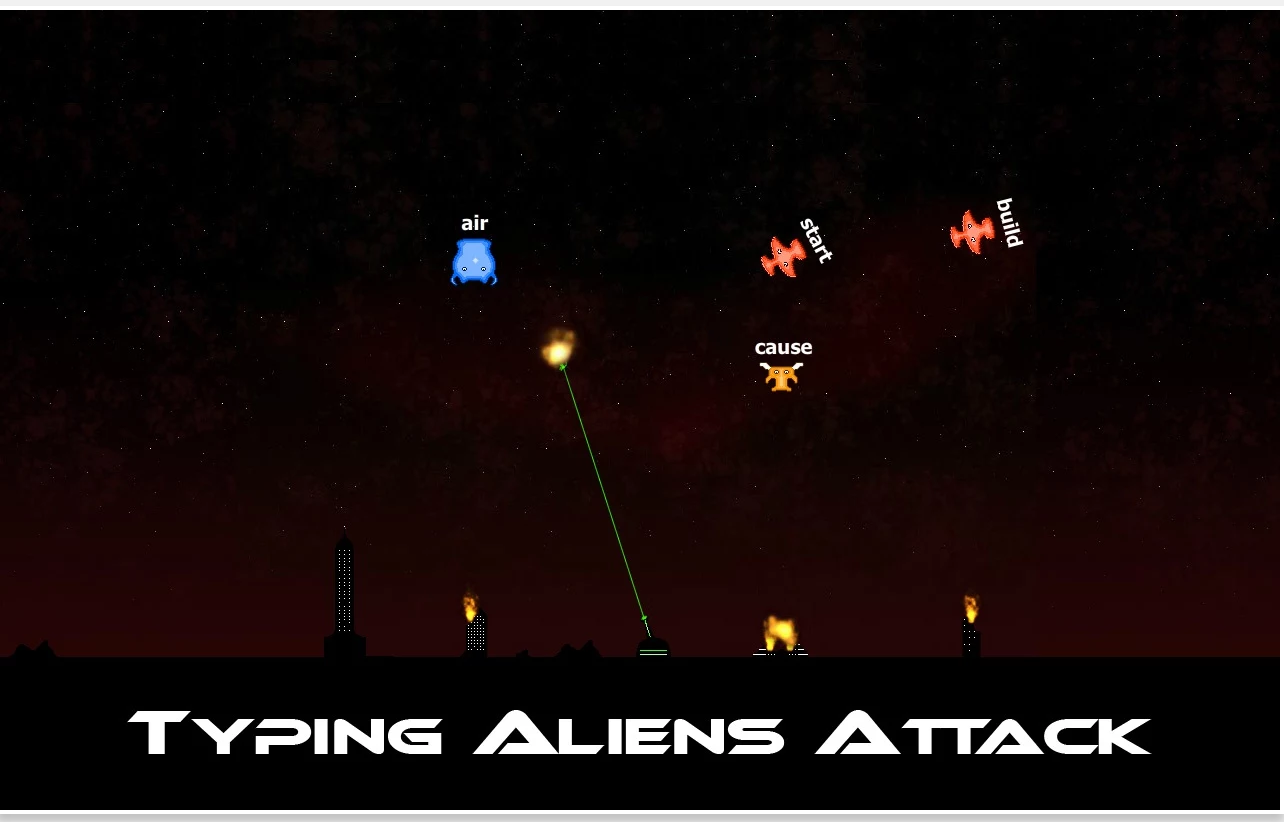
  • Typing Aliens Attack: https://goo.gl/4AbxAQ
  • Typing Games: https://goo.gl/0EmD3F


Monday, December 12, 2016

Lesson Ideas for #Chromebook Classrooms: Getting Started with Computers


Note: this lesson idea is an excerpt from my book, The Chromebook Classroom. If you find this lesson helpful, you will enjoy the 40+ lessons from the book! Pick up a copy on Amazon or at chrmbook.com!


About this lesson

Young students will need to learn basic computer skills and knowledge in order to use their Chromebooks well. Lead them in the following activities early in the school year, so they can get comfortable using a Chromebook sooner.
Mouse / Trackpad Activities

Navigating with a mouse or trackpad can be difficult for little hands and fingers. Here are some exercises to help build mouse skills:

Practicing Logging In

Even young students should have their own account to log into, not a generic class account. They CAN do it! Give students time to practice and master this skill. Turn it into a game! Keep track of how long it takes the entire class to log in. Write down the times in a visible location. Each day, challenge your class to see if they can beat the previous class log-in record. 

Understanding Computers

One of the best tech lessons we can give our students is the chance to build their technology vocabulary and knowledge of how computers work. Here are a few activities that build technology literacy in young students:

Paper Computers: Before allowing students to use a “real” computer, have them build a computer out of paper and identify important parts such as the trackpad, screen, power port, USB port, search key, etc. 


Computer Bingo: As a class, make a list of all of the important parts of a computer. Write each of the parts on a slip of paper and put them into a bowl or basket. Have students fill out a bingo card with some of their favorite components, then play BINGO as a class. 
Simon Says - Chromebook Edition!Provide each student with a Chromebook. Give students simple tasks to perform: open a new tab, log out, open the Learn To Count app, close the lid, etc.

Saturday, November 26, 2016

What's Up with Android on Chrome?

The announcement of Android Apps coming to Chromebooks was one of the biggest announcements from Google in 2016. The original announcement happened back in May and the Google Play store is rolling out to more and more Chrome devices.

I'm a big believer in ChromeOS (I wrote a book about it!), so I was interested in this major update to an already great platform. 

I have two Chromebooks that have had access to the Play store for quite a while (Asus Flip and Pixel). I have installed lots of Android apps onto both devices. 

Here's the interesting thing - I don't use them. 

So far, the ability to use Android on Chrome has absolutely zero impact on my daily use of my Chromebook. In fact, I have forced myself to use some Android apps (Pandora, Keep, Pixlr, Photoshop, Instagram) and it hasn't been a very enjoyable (or helpful) experience. 

The apps are designed for mobile phones and don't scale to fit my screen and the interface is designed for touch which means it takes more touches to perform an action. 

Pixlr, my primary photo editing app, is a good example. The left is the Android version of Pixlr. The right is the web-app. 

So far, I have been greatly underwhelmed by the use Android apps on my Chromebook. The only individuals who seem to be genuinely excited about Android on Chrome are those who want to access Android games. 

As an educator, I always ask "how would a classroom teacher use this tool?" So far, I'm not really sure. To me, it seems that adding Android to Chrome just complicates what was a beautifully simply platform. 

Android on Chrome is still very new, so I will reserve my final judgement. Perhaps app developers just need to make ChromeOS optimized versions of their apps. 

Help me out - have you found Android on Chrome to be helpful? What specific apps are you using that make your ChromeOS experience even better? 

Saturday, November 19, 2016

Replacing Readability with Purify

UPDATE 12/26/2016: I'm happy to announce that Readability will live on as "Mercury Reader." If you previously installed Readability, you will notice that the icon has changed, but it will continue to work as before. If you don't have Mercury, head over to the webstore and get it! 

Readability, one of my favorite Chrome extensions, will be shut down on December 10, 2016. You can read their announcement here.  Readability is one more in a long line of web-based tools that, while popular, did not have a monetization plan and were unable to continue development and support of their free service.

Readability was a tremendous tool for helping students access content without all of the clutter and garbage found on most major news sites.

After hearing of the impending shutdown of readability I spent quite a bit of time searching for alternatives. I tried out a lot of different extensions, but only one came even close to providing the simplicity and effectiveness of Readability.

If you are a Readability user, I recommend that you begin using Purify.

Purify Chrome Extension

Purify strips out all of the advertisements, videos, related stories and links that you tend to find on news sites. Purify is unique in that it pulls the content into columns and forces the user to scroll right / left rather than one long column like Readability. Purify does not provide any sharing or save for later options. It does offer the ability to change the font size and style. 


Purify is a solid replacement for Readability and the only decent replacement that I have been able to find. If you have other alternatives, please let me a comment!

Thursday, November 17, 2016

📚 Announcing The Chromebook Classroom! 📚


Two years ago, I decided to write a book. It was easy at first. I had lots of ideas, had enjoyable conversations with various people about those ideas, and starting sketching out the basic outline for the book.

Then it got harder. A lot harder. Writing is a slow, solitary, grind.
I decided that I needed some help (and accountability) for this project. So I asked my PLN if they would be interested in helping develop content for my book. Over 60 individuals said yes! They contributed lesson ideas, technical help, and reviewed my early drafts.

Writing early drafts of The Chromebook Classroom
We even met together in June of 2015 to work on this project together. Here a picture to prove it!

After more editing, reviews, and revisions, we had a finished manuscript that was ready for design and print!

Today, I am excited to officially announce the release of The Chromebook Classroom, the first detailed exploration of the use of Chromebooks in the K-12 classroom!


Starting today, The Chromebook Classroom is available from Amazon.com or chrmbook.com for $24.95 (print) or $9.97 (digital). Bulk ordering options are also available.

Buy a copy of The Chromebook Classroom from chrmbook.com between now and Thanksgiving (Nov. 24) and save 25%! That's only $18.75!

I am very proud of the final product and grateful to all those who helped make this project a success!

Books are meant to be read and I believe that this book can help educators use technology more effectively. I hope you will consider purchasing a copy for yourself, a friend, or a colleague.

Purchase the Chromebook Classroom from Amazon.com or chrmbook.com
The Chromebook Classroom is available from Amazon or chrmbook.com

Sunday, October 23, 2016

The Visual Language of Chrome


 The Chromebook Classroom
This post is an excerpt from my new book, The Chromebook Classroom. You can download a free excerpt here! If you like it, you can purchase from chrmbook.com or on Amazon! 

Teachers who use Chromebooks should adopt a common language to help their students quickly navigate ChromeOS. There are four key symbols that are found throughout the operating system that students should know and understand. Here's how I describe them when I train others on how to effectively navigate ChromeOS.

The "Google Waffle"

This symbol typically appears in the top right corner of Google services such as Gmail, Drive, and Calendar. Click to access your favorite Google applications.


The "Hamburger"

Also referred to as the "pancakes", this symbol represents settings, or options. In some versions of ChromeOS this symbol is in the top right corner of the Chrome browser. Clicking on it give you access to the Chrome menu.


The "Snowman" 

This symbol is also an indication for settings or options. It is frequently found in Chrome Apps. Some versions of ChromeOS have this symbol in the top right corner of the screen instead of the "hamburger."


The "Shish-kabob"

This rare symbol signifies application settings and is usually found within various Chrome Apps.