The Electric Educator: Elementary
Showing posts with label Elementary. Show all posts

Tuesday, December 13, 2016

Lesson ideas for #chromebook Classrooms: Typing for Elementary Studentds

Note: this lesson idea is an excerpt from my book, The Chromebook Classroom. If you find this lesson helpful, you will enjoy the 40+ lessons from the book! Pick up a copy on Amazon or at chrmbook.com!

Much like handwriting, typing is an essential life skill that students must learn as quickly as possible. Chromebooks are compatible with many free resources and programs that can help students improve their typing speed and proficiency. Typing practice is a great enrichment and reward activity once other work has been completed. Regular practice is key.

The following typing tools are good options for elementary classrooms.

Dance Mat Typing:


  • Where to find it: http://chrm.tech/1ZHrFmk
  • Includes good verbal instructions (headphones will be helpful!)
  • No login or configuration required, however, progress is not saved or tracked.

Typing.com:

  • Where to find it: http://www.typing.com/tutor/
  • Teacher must set up a class and enroll students to view progress and collect data.
  • Free version is ad-supported

Typing Club: 

  • Where to find it: https://goo.gl/Sn1mpC
  • Features a Chrome App
  • Saves student progress, but data is not shared with the teacher.

Typing Lessons: 

  • Where to find it: https://goo.gl/4kdgxG
  • Get started fast! No setup or login required for practice.
  • Log in using Google to track progress. 
  • Features a fun multiplayer game

Typing Practice Games

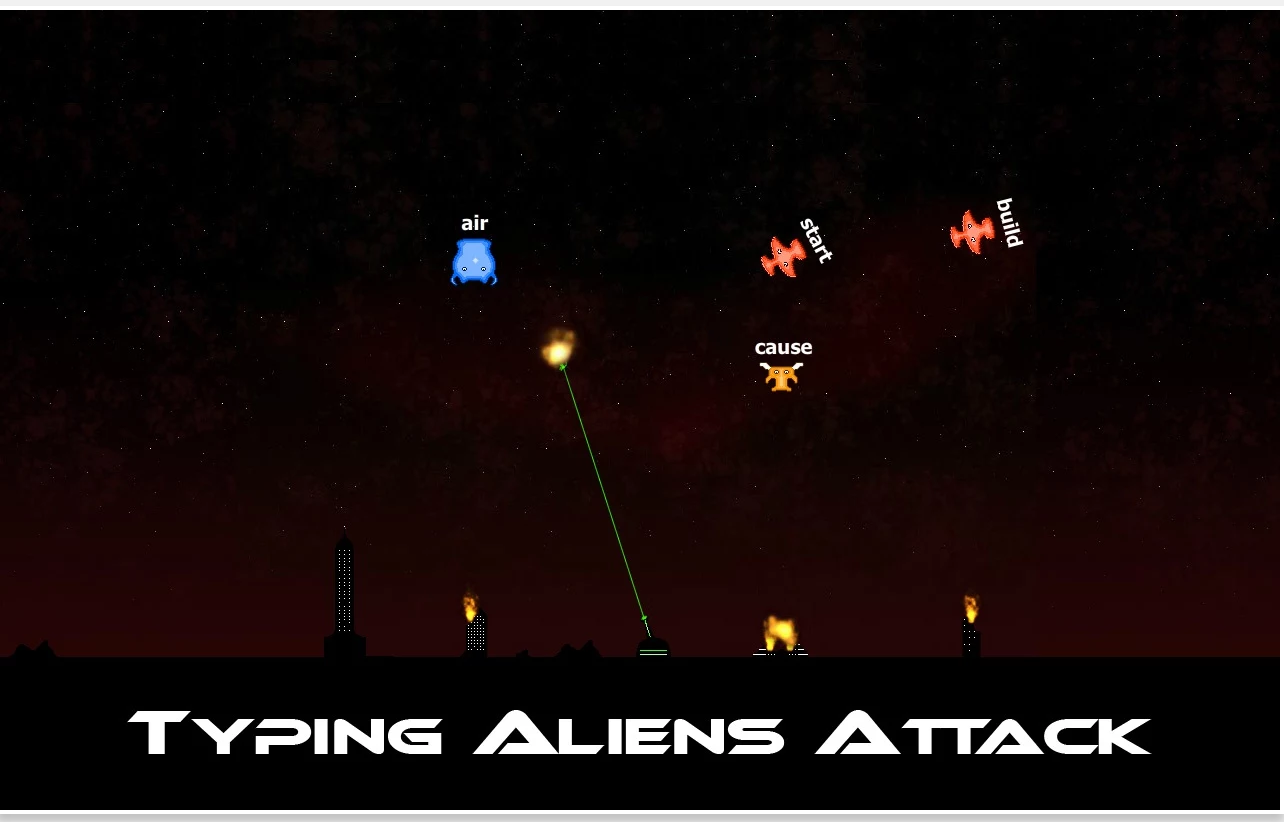
  • Typing Aliens Attack: https://goo.gl/4AbxAQ
  • Typing Games: https://goo.gl/0EmD3F


Monday, December 12, 2016

Lesson Ideas for #Chromebook Classrooms: Getting Started with Computers


Note: this lesson idea is an excerpt from my book, The Chromebook Classroom. If you find this lesson helpful, you will enjoy the 40+ lessons from the book! Pick up a copy on Amazon or at chrmbook.com!


About this lesson

Young students will need to learn basic computer skills and knowledge in order to use their Chromebooks well. Lead them in the following activities early in the school year, so they can get comfortable using a Chromebook sooner.
Mouse / Trackpad Activities

Navigating with a mouse or trackpad can be difficult for little hands and fingers. Here are some exercises to help build mouse skills:

Practicing Logging In

Even young students should have their own account to log into, not a generic class account. They CAN do it! Give students time to practice and master this skill. Turn it into a game! Keep track of how long it takes the entire class to log in. Write down the times in a visible location. Each day, challenge your class to see if they can beat the previous class log-in record. 

Understanding Computers

One of the best tech lessons we can give our students is the chance to build their technology vocabulary and knowledge of how computers work. Here are a few activities that build technology literacy in young students:

Paper Computers: Before allowing students to use a “real” computer, have them build a computer out of paper and identify important parts such as the trackpad, screen, power port, USB port, search key, etc. 


Computer Bingo: As a class, make a list of all of the important parts of a computer. Write each of the parts on a slip of paper and put them into a bowl or basket. Have students fill out a bingo card with some of their favorite components, then play BINGO as a class. 
Simon Says - Chromebook Edition!Provide each student with a Chromebook. Give students simple tasks to perform: open a new tab, log out, open the Learn To Count app, close the lid, etc.

Thursday, October 13, 2016

Adobe Spark for Simple Multimedia Projects

One of the most important things we can teach our students is to communicate ideas to others. Multimedia is a great tool to do just that. As educators, we would be negligent if we did not help our students become effective consumers and creators of multimedia. Because I believe strongly in this, I am always on the search for simple tools that allow students to communicate with words, pictures, video, and audio.

One great option is Adobe Spark - a free tool from the creators of PhotoShop, InDesign, and many other professional design products.

Adobe Spark has a few immediate things going for it:
  • Simple log in / signup process (You can use your Google Account)
  • Super simple interface with minimal buttons and clutter. 
  • Fully web-based and works outstanding on a Chromebook!
There are three different project options in Adobe Spark - posts (still image), page (mini web-site) or Video (photo slide show). 

I worked with my two oldest kids to create a short video project on pollution (their science topic for this week). They went out with their Android tablets to take pictures and then we incorporated their photos, text, and voices, into the video project.

The project interface is simple enough for elementary age students to easily navigate. Icons throughout allow early readers to navigate with ease.


The video project type allows you to select images, add text, and add short voice-over if desired. Adobe Spark automatically applies a fade in/out to pictures (Ken Burns effect) to add interest. A generous library of royalty free music provides background accompaniment.

There are 5 page layouts from which you can choose. The limited options keeps things simple and allows project development to progress quickly.

Audio recording occurs on each individual page. Simply press and hold the microphone button while you speak.

Spark also provides a solid selection of project themes to ensure that the fonts and colors used in your project are easy to read and match nicely. You must chose from one of the provided themes which can not be customized.

Adding images is easy as Spark provides a (limited) image library and also integrates with Adobe Creative Cloud, Adobe LightRoom, DropBox, and Google Photos. For our project we uploaded pictures into a shared Google Photo Album and were able to easily access them from Spark. You can also directly upload your own pictures if you wish to get pictures from Google Drive or another storage solution.

It was quite simple to collect all of our material, design, and polish our video project. We spent about 30 min. putting everything together (not including taking the pictures). The entire project was completed on an Acer Chromebook.

Here is our finished Spark video project!


There are a few things to consider before adopting Spark for your next class project.
  • Spark is not collaborative -  students will need to share a device if you want to make this a group project. 
  • Spark is slow - I was a bit frustrated by the slow loading speed of our project, photos, etc. It works great, you just have to be patient. 
  • Adobe adds a "made with Spark" screen at the end of your presentation. You can chop it out if you use a video editor.  
  • Spark does not support video uploads - You can only work with still pictures
I was generally impressed with Adobe Spark and will certainly use it for future projects. If you are looking for a simple multimedia project option that works great on a Chromebook, Spark is a great option! 

Thursday, September 15, 2016

Skip Counting with Spreadsheets

I have 5 kids, three of which are in elementary school (kindergarten, first, and second grade). We are learning to skip count numbers 1-12. Each week we take two number sets and practice (this week we are practicing 5 & 6). Skip counting practice is a pretty rote and boring tasks, so we are always looking for new ways to practice the same thing:
  • Count out-loud as a group
  • Fill in a skip-counting worksheet (paper)
  • Sing the skip counting song
  • Use math manipulatives
I was recently inspired to create a skip counting spreadsheet as another way to practice and explore number patterns. Using a spreadsheet to practice skip-counting isn't all that different than filling out a paper worksheet, but it does have a few additional advantages: 
  • Conditional formatting can be used to illustrate number sequence and scale
  • The activity introduces young students (kindergarten, first, and second grade) to the concept of a spreadsheet. 
  • Begins building spreadsheet vocabulary (cell, row, column)

Unfinished Skip Counting Sheet
Finished Skip Counting Sheet
We will pull out this spreadsheet periodically to mix things up and practice our skip counting skills. 

You are welcome to make a copy of my template to use in your own class. I know there are many additional elements that could be added into this sheet (self-grading formulas and formatting). If you make any improvements, let me know by leaving a comment.


Wednesday, March 2, 2016

Elementary Book Report Machine

I am fortunate to be able to work with thousands of educators at hundreds of schools each year. Occasionally, I have the opportunity to help a school build something really cool.

My first project of 2016 was to help Kingsley elementary school, a small school in northern Michigan, build an elementary book report machine.

Writing reflectively is a key component of the common core standards (example). A book report is a tremendous way to help students practice reflective, informational writing, and to also encourage them to identify elements of literature such as genre, plot, and setting. As a bonus, they can share their writing with others!

The Kinglsey elementary team (Rich Rountree, Sean Selby, Sara Trowbridge, Kendra Bell, and Lynn Alford) decided to leverage their class set of Chromebooks and turn a paper book report assignment into a digital process using Google Forms and Docs.

One of the simplest ways to integrate technology into the classroom is to update an existing lesson or activity with modern tools and processes. As you do this, you will discover new possibilities and will likely end up modifying the assignment to make it even better!

We quickly put together a Google form which contained all of the required elements of the book report.

No one wants to read a book report in a spreadsheet, so we decided to use the AutoCrat Sheets add-on to generate a unique document for each form submission. To do this, we first created a template document with merge tags.

With these steps complete, we now have a system that generates a very nicely formatted Google Doc book report for each form submission. These documents are all safely stored in a Google Drive folder that is shared with the entire grade level team.

But wait, there is more!

Book reports are meant to be read! The final step of this process is to create a QR code for each book report which will be added to the inside cover of the book.

If a student sees a QR code in a book, they can scan it with their device and read the report written by a fellow student. This in turn encourages students to take pride and ownership in writing their own report.

This simple system helps teachers organize and curate large volumes of student work and gives students a wide audience.

The Kingsley elementary team has graciously allowed me to share their story and copies of the documents that you can use! Give it a try - use this link to try out the Book Report generator (hope you like mice and cookies!)

Build your own book report machine: 
  • Google Spreadsheet - We used the AutoCrat add-on to automatically generate docs from the form submission. Note: If you would like a copy of the form below, you will need to make a copy of this spreadsheet; the form comes along with it! 
  • Google Form - This is the final form; fill it out and press submit to see the system in action!
  • Google Doc Template - This is the document that determines the layout of the book reports. The merge tags (i.e. <>) are replaced with data from the sheet.