The Electric Educator: G Suite EDU
Showing posts with label G Suite EDU. Show all posts

Monday, March 4, 2019

5 tips to design better forms


5 tips to design better forms...

Google Forms is a marvelous tool in the classroom. Get even more value out of form by applying these five tips that go beyond the basics.


1. Use validation to collect better data

Your Google Form is only as good as the data it collects. If your data is a mess, it won’t be very useful.

Many of the question types in Google Forms offer a setting called “response validation.” Use it to require a response to fit a certain criteria:


  • Checkbox questions: set a minimum or maximum number of choices that can be selected.
  • Short Answer question: use the Regular Expression feature to get consistently formatted phone numbers, zip codes, or state abbreviations.
  • Paragraph Question: set a minimum or maximum response length

2. Make your form look pretty!

While Forms has added the ability to change the header image, background, and some limited font options, with a little effort you can really make your form look nice!

I frequently split my form into different sections and use the image element to add graphics.

A good example is this conference registration form: http://tinyurl.com/y48js49p


I use Canva to create most of my form graphics. I discovered that the “Leaderboard” template works really well with forms.

Another trick you can try is adding emoji to your form questions and answer choices. I use the πŸ”₯and πŸ‘‰ symbols to emphasize important information or 1️⃣2️⃣3️⃣4️⃣ if I have a set of steps I want to clearly explain.

The Emoji One Chrome extension is what I use to access emoji icons on my Chromebook (works on Mac and PC too!).


3. Automate with Add-ons

Once you’ve mastered the essential elements of forms, you MUST dive into add-ons.

Add-ons are like apps for Google Drive. To become a true Form Fanatic you need to be familiar with add-ons for forms AND sheets.

Add-ons will help you work more efficiently and create automated systems. I use a LOT of different add-ons for different situations. Here are some of my favorites:

Form Add-Ons:

  • Choice eliminator removes MC options from your form after they have been selected. Great for sign-ups, volunteer opportunities, and reservations.
  • Form Limiter will set limits on how long your form is available or how many responses a form will receive before it is turned off. Great for forms with deadlines.
  • Use Email Notification for Forms to send out email or mobile phone notifications when a new submission is received.

Sheet Add-ons

  • Autocrat is one of my personal favorites! I use Autocrat to generate documents based on form data (certificates, invoices, meeting agendas, etc)
  • Copy Down isn’t super exciting, but it’s very helpful! I use Copy Down to apply formulas to incoming form data to create automatic calculations.
  • FormMule is an email merge utility that you can use to send customized emails based on form responses. I use FormMule when I need to run calculations on my form data before sending out an email.
There are a LOT more add-ons, but those are some of my favorites!


4. Filter, Sort, and Pivot your Data!

We use Google Forms to collect data. Once someone submits a form, the information gets dumped into Google Sheets...and things get interesting!

A spreadsheet is an amazing tool for collecting and organizing information. Here are three things that you should know how to do in Google Sheets:


  • Sort - Sort a column in your spreadsheet to organize your data alphabetically or numerically. This is basic, but very useful!
  • Filter - Filter your sheet to isolate the information you want to see. For example, you might use the filter option to hide quiz scores for your first and third hour classes so that you can review the scores from second hour.
  • Pivot - A pivot table lets you look at your data from a different perspective. This is especially helpful with things like test scores or survey information. For example, you might “pivot” your data to see if the 8th grade students who had failing grades in math also struggled in their ELA courses.
Data analysis is super important topic. If you want to learn more, I recommend that you connect with Ben Collins, the smartest Google Sheets guy I know!


5. Autograde and lock your quizzes!

Google Forms has a special quiz mode that will auto-grade student choices!

Stop wasting your precious time hand-grading paper quizzes! Auto grade them!

Don't limit your quiz to traditional multiple choice questions! Here are a few ideas you might want to try:
  • πŸ–Ό Image Questions - insert and image of a map or equation and and then ask comprehension questions (great for math and science!)
  • 🎦 Video Questions - Add a short video to your quiz and then ask questions about the video content (great for world language!)
  • ✅ Check Box Questions - Use the checkbox question and have students select “all that apply.”
  • πŸ“ Matching Question - use the grid question type to set up a matching question.
Be creative... there are LOTS of possibilities.

You may have heard about the new LOCKED MODE for Google Forms.

I shared an early review a few months ago. When enabled, locked mode will prevent students from accessing other information during a quiz.

It's pretty awesome!
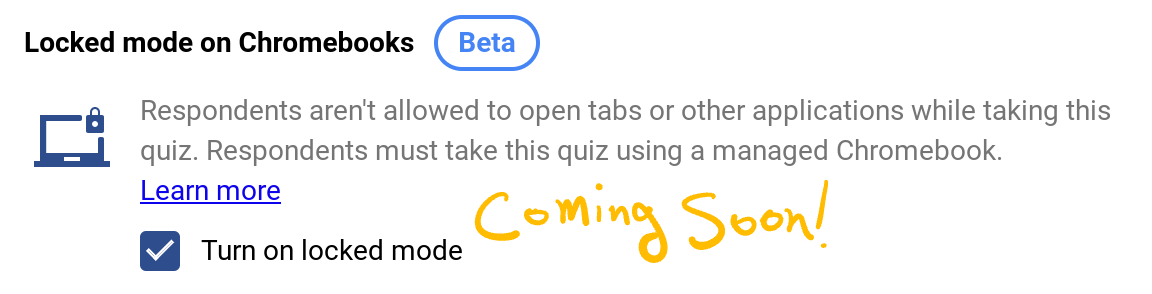


Locked mode is NOT available yet...but it should be very soon (March?)! Watch this video or read this blog post to see how it works!

Are you ready to become a Form Fanatic?

Each spring I teach a 5 week Google Forms masterclass. Join me for a deep dive into Google Forms!

I offered this course for the first time in the spring of 2018 and the feedback was outstanding:

"I was a casual user of Forms, but I was not using the data that I had collected to it's full potential. Now I am writing better Forms so my data is of higher quality and I am better able to analyze the results so I'm making decisions based on data...not just giving surveys." - Laura Foreback, middle school teacher
This course is perfect for classroom teachers, tech coaches, and school administrators!

Interested? Click here for details!

Thursday, October 6, 2016

Google Admin Console Configuration: Chromebook Settings


The Google Apps (G Suite) administrator console is what makes Google Apps an outstanding solution for K-12 schools. The ability to configure and adapt the settings of your devices to the unique needs of your district is worth every penny of the...O, wait, it's free!!!

While the admin console is very powerful and helpful, it can be a bit overwhelming, especially if you don't have a ton of experience with enterprise controls in general or Google Apps specifically. There are a LOT of configuration options within the admin console. The reality, however, is that there are only a few settings that are critical.

This post explores the the critical settings needed in order to deploy Chromebooks in your district. If you haven't done so, make sure you read my previous post on configuring the core G Suite apps and the other Google Services.

The recommendations below are the bare minimum that an admin should configure when deploying Chromebooks. There are many more settings that can be configured to optimized your fleet of Chromebooks.

These settings can be found by logging into the admin console and selecting device management > Chrome Management > Device Settings

Enrollment Controls
These settings ensure that your managed Chromebooks remain under the control of your administrative settings.

  • Force device to re-enroll into this domain after wiping
  • Enable verified access
Sign In Settings
Who can sign-in to your devices? That's the key question here. 
  • Disable guest mode (for most situations)
  • Restrict sign-in (enable to force staff and students to use their district provided account)
Device Update Settings
New versions of ChromeOS are deployed every six weeks. In most cases, you will want to leave automatic updates on and let your devices updated as needed. If, however, you have testing applications that require a specific version of Chrome, you will want to freeze your devices on that version as rolling back ChromeOS is difficult. 

That's it for device settings! Next you will want to update the Chrome User settings which can be found here: device management > Chrome Management > User Settings 

Apps & Extensions
The key setting here is the one that says "Allow or Block Apps?" You need to decide if you are going to whitelist, blacklist, or push content from the Chrome webstore. If you want to push (auto-install) content to student devices, select "block all apps" and then use the force install section to select and deploy the content that you wish. 

Incognito Mode
It is best to disable Incognito mode for student devices. The feature allows a user to browse anonymously so that visited pages are not stored in the web history. Disable incognito mode in the "Security" section of Chrome User settings. 

The Chromebook Classroom by John R. Sowash
These are key settings that should be immediately configured when deploying ChromeOS devices. For help in completing your ChromeOS configuration, pick up a copy of my book, The Chromebook Classroom, which includes a comprehensive deployment and configuration guide for Google Administrators. 

You can download a free excerpt of the admin section here. The Chromebook Classroom is available for purchase at chrmbook.com or on Amazon. 

Wednesday, October 5, 2016

Google Admin Console Configuration: Additional Google Services


The Google Apps (G Suite) administrator console is what makes Google Apps an outstanding solution for K-12 schools. The ability to configure and adapt the settings for each core Google service to the unique needs of your district is worth every penny of the...O, wait, it's free!!!

While the admin console is very powerful and helpful, it can be a bit overwhelming, especially if you don't have a ton of experience with enterprise controls in general or Google Apps specifically.

There are a LOT of configuration options within the admin console. The reality, however, is that there are only a few settings that are critical.

This post explores the "additional Google services" portion of the admin console. If you haven't done so, make sure you read my previous post on configuring the core G Suite apps.

Google has a LOT of tools and products that you can access through a Google Apps account. Here is the list of policies that you MUST review and adjust according to the policies of your district. Failing to do so can open you up to serious problems and issue down the road.

These settings can be found by logging into the admin console and click on Apps > Additional Google Services.

The Disable List
Here are the additional services that are not K-12 friendly that I recommend disabling for all users in your domain. You may have exceptions, however most school districts do not need access to any of the following:

  • All DoubleClick products (5 of them) - these tools are for advertisers. 
  • Dart for Publishers - allows central advertisement management
  • Google Adsense - Display advertisements on your website to make money
  • Google Advertising Professionals - lets people earn an ad-words certification
  • YouTube promoted videos - promote videos on YouTube
  • Play Books Partner Center - sell your book via Google
  • Google AdWords - purchase ads to promote your product
  • Google Payments - use Google Wallet to buy things
  • Google Play Developer Console
  • Google Shopping
  • Merchant Center
  • Partner Dash
The Teachers Only List
The following tools can be left on for faculty, but should be turned off for students. This is only possible if you have seperate organizational units for staff and students configured for your domain. 
  • Google Voice
  • Google+: it is imperative that you disable G+ for students. Failing to do so can result in student accounts being disabled because they do not meet the age requirement (13+ for Google+)
  • Blogger - it is probably advisable that only faculty create blogs. Once created, access can be delegated to Students. 
  • Google Groups - enables users to join external Google Group
  • YouTube - turning this service off does not restrict access to YouTube, it prevents students from creating a YouTube channel using their school account. 
Admin Only
These tools should be turned off for everyone except the domain administrator or IT department. This can only be done if you have an IT / Admin organizational unit created. 
  • Google my Business - it is a good idea to create a Google Business profile for your school. This will ensure that the information you provide is available via Google Search and on Google Maps. 
  • Google Search Console
  • Google Analytics
  • Developers Console
    Leave on for Everyone

    These tools can be left on. The are unlikely to be used by large numbers of users, but can be helpful.
    • Google Takeout - allows users to download a backup copy of their data (Drive, Gmail, Calendar, etc)
    • Chrome Management
    • Chrome Webstore
    • FeedBurner
    • Fusion Tables
    • Google Bookmarks
    • Google Books
    • Chrome Sync
    • Google Custom Search
    • Google Finance
    • Google in your Language
    • Google Maps Maker
    • Google Maps
    • Google My Maps
    • Google News
    • Google Photos
    • Google Public Data
    • Google Search Console
    • Google Translator Toolkit
    • Individual Storage
    • Location History
    • Mobile Test Tools
    • Panoramio
    • Google Trips
    • Web & App Activity


    Interested in learning more? Attend the Google Admin Bootcamp, a 2-day deep dive into the Google Admin Console. The Admin Bootcamp takes place around the country. You can even host an event at your school! Visit gEducator.com/admin to learn more!

    Tuesday, October 4, 2016

    Google Admin Console Configuration: Core G Suite Apps


    The Google Apps (G Suite) administrator console is what makes Google Apps an outstanding solution for K-12 schools. The ability to configure and adapt the settings for each core Google service to the unique needs of your district is worth every penny of the...O, wait, it's free!!!

    While the admin console is very powerful and helpful, it can be a bit overwhelming, especially if you don't have a ton of experience with enterprise controls in general or Google Apps specifically.

    There are a LOT of configuration options within the admin console. The reality, however, is that there are only a few settings that are critical. This is the first layer of settings and policies that you should consider. There is more that we can do to ensure that students and staff are working in a safe and secure environment.

    Here is the list of policies that you MUST review and adjust according to the policies of your district. Failing to do so can open you up to serious problems and issue down the road.

    These settings can be found by logging into the admin console and click on Apps > G Suite.

    Gmail


    • Are you going to setup restricted mail access / delivery for students (e.g. only able to email teachers or other users from withing your district) 
    • Have you configured the "dirty word list? (content compliance) to prevent inappropriate mail from being sent? 

    Contacts 

    Do you want a shared address book for your entire domain? Unfortunately, this is a setting that applies to everyone and can't be configured based on organizational unit. Enabling contact sharing makes it easier for students to find and email large numbers of people within your district.

    Google Hangouts


    • Are you allowing voice and video calls for students? 
    • Are you forcing chat conversations to be "on the record" (this will ensure that they are in Google Vault and can be retrieved)? 
    • Are you allowing external (outside your domain) chat conversations?

    Calendar

    Can users share their calendar outside of your domain? By default, they can not, but this may cause issues for teachers who want to share a homework calendar with parents.

    Drive


    • Will you allow students to share outside of your domain? 
    • Will you allow offline drive access (only recommended for 1:1 programs)  

    Google Vault


    • What is your email retention period (5 years, 7 years, indefinite?)
    • Will you remove emails from user inboxes if they are older than the retention period?

    Google Sites


    • Are you going to allow students to create Sites? 
    • Can Google sites be share outside of your domain?

    Google Classroom

    Have you identified your classroom teachers and added them to the Google Classroom group? This will prevent students from taking on a teacher role and creating their own courses.

    Interested in learning more? Attend the Google Admin Bootcamp, a 2-day deep dive into the Google Admin Console. The Admin Bootcamp takes place around the country. You can even host an event at your school! Visit gEducator.com/admin to learn more!


    Saturday, October 1, 2016

    First Look: Explore in Docs, Sheets, and Slides!


    This past week Google announced several updates and changes to their suite of tools. The most notable was the name change - previously called Google Apps for Education, that same collection is now called G Suite for Education.

    In that same announcement Google rolled out a new feature called "explore" for Google Docs, Sheets, and Slides. This feature puts computer intelligence (machine learning) to work for you making it easier to find trends in data, create a stunning presentation, and find relevant material for your document. According to Google, the Explore feature can reduce the time it takes to create a Doc, Sheets, or Presentation by 30%.

    Here's a quick overview of what Explore does.

    Explore with Google Docs

    Explore in Docs will scan the content of your document and suggest relevant websites, images, and other content from your Drive Account. The idea is to present and provide information relevant to your current topic of work so that you don't have to leave the Doc to open a new tab, search for an image, etc. Explore is essentially a unique Google Search within the document.

    Educators familiar with the "research" feature of Google Docs will be quite disappointed to discover that it has been replaced by "explore" but is missing many of the much loved and used feature of the research tool. Citations are no longer inserted as footnotes and can not be configured from MLA, APA, or Chicago style. The ability to search creative commons images has also been removed.

    Unfortunately, I have to give the explore feature of Google Docs two thumbs down. The features is has don't seem all that useful to me and the features that were eliminated were some of my favorites. 

    A grassroots petition is currently underway to have Google bring back the research features that were eliminated. To add your voice, open a Google Doc, click on Help > Docs Help > Send Feedback. 

    Explore with Google Sheets

    The Explore function of sheets will be particularly helpful for individuals who don't consider themselves to be "spreadsheet people." If you aren't comfortable running formulas and functions, you will love the Explore feature. Simply type in a question and Google's machine learning engine will attempt to answer it for you.

    I am particularly impressed that not only can Google answer your data related question, they also show you the formula that was used to get the answer so that you can replicate it on your own. Kind of like Wolfram Alpha for your Google Sheet!

    Take a look at the video below for an easy example!

    Explore for Google Sheets gets two thumbs up from me! It adds functions and makes working with spreadsheets easier for adults and students. 

    Explore with Google Slides

    The explore feature in Slides is particularly interesting as it is designed to help you improve the visual appeal of your presentations. Click on a slide and the Explore window will show suggested layouts for your content. I tested several existing slide decks that I had created and some of the suggestions were really bad, but others were decent. 

    Explore in Slides also includes the same content search features found in Google Docs. However, like Docs, the beloved Research tool is no longer available. I am particularly disappointed that the ability to search for and insert video into my presentations is no longer available. 

    I give the Explore feature in Slides one thumb down. It does provide some new and helpful functions, however it is a shame that those new features cam at the expense of the research tool. If you would like to send your suggestion to Google, you can do so by opening up a presentation and visiting Help > Slides Help > Send Feedback. 


    Saturday, July 2, 2016

    New Book: The Chromebook Classroom

    The Chromebook Classroom by John R. Sowash
    For the past year I have been working on my first book - The Chromebook Classroom. I'm excited to announce the launch of the book and provide readers of my blog an opportunity to download a free excerpt!

    The Chromebook launched in 2009, and it was horrible! I was an early user of the first Chromebook, the CR-48. Google rapidly responded to user feedback and continued to improve the device.

    Pretty much the entire tech industry thought Google was crazy for developing a new platform. No one thought much of the concept of a fully web-enabled device:


    Today, Chromebooks are the #1 selling education device with more than 10 million devices currently in use in schools around the world. Chromebooks have outsold every other device...combined.

    Just because a district, school, or classroom has Chromebooks does not mean that they are being used to their fullest potential. The Chromebook Classroom is aimed at helping teachers, district leaders, and IT professionals, deploy, manage, and use Chromebooks effectively.

    The book is divided into three sections:

    1. Getting Started with Chrome

    Section one provides the "chrome story" and provides an overview of the hardware (track pad, special keys, etc) and software (Chrome browser, shelf, app launcher, etc). Section 1 also helps users transition from Mac, PC, or iPad to the Chrome platform.

    2. Chromebook Management

    Section two is specifically written for IT Directors and others responsible for the configuration and management of Chromebooks in an educational setting. The bulk of section 2 reviews the entire Google Admin Console and provides recommendations on every single hardware and user setting related to Chromebooks such as pushing out apps and extensions for students.

    The second half of this section discusses various deployment tips and considerations such as Chromebook repair, insurance, cases, and how to build a culture of ownership among teachers and students. This section will be of particular interest to principals and superintendents.

    3. Chromebook Lesson Ideas


    The final section of the book is for classroom teachers and provides over 30 specific, concrete lesson ideas that take advantage of the collaborative and creative potential of Chromebooks. Specific lessons are given for elementary, middle, and high school age students.

    Classroom management strategies are another major topic in section 3. You'll learn specific tips for using Chromebooks in a 1:1, shared, and station based setting.

    Chromebooks are an expression of all that is great in education - creativity, organic exploration, and a thirst for knowledge. It is my hope that this book will serve as a helpful guide for the educators and administrators.

    The Chromebook Classroom will be available in both Print and Kindle formats on Amazon starting in August of 2016. Discounted rates are available for districts who wish to order 50 or more copies. For information on bulk orders, contact me at jrsowash[at]sowashventures[dot]com.

    Snag your free excerpt here.


    Thursday, February 11, 2016

    5 Ways to Help Parents Connect with Google Classroom

    The impact of parent involvement on student performance is well documented and it is important that teachers have a strategy for involving parents in their classroom. Here are 5 ways you can help parents stay involved if you are using Google Classroom.

    #1 Guardian Summaries


    Guardian Summaries are the "official" way to help parents stay abreast of their student's work.

    Parents can request to receive daily or weekly classroom updates via email. Here's how to set it up:

    1. Visit your Classroom "student" tab.
    2. Slide the "guardian summary switch on the left side of the screen (if you don't see it you will need your IT director to verify your membership in the "Classroom Teacher" Google group for your domain)
    3. Click "invite guardian" for each student and enter the parent email address.
    4. Parents will receive an email invitation which they must accept and configure their preferences.

    Notes on Guardian summaries: 

    • Parents can elect to receive a daily OR weekly summary
    • Parents will only see the title and instructions for your classroom assignments, they can NOT access classroom or see student work. 
    • If a student is enrolled in multiple classes, the parent will get one email with a combined summary of ALL of the student's courses. 

    #2 Login Sharing

    Parents should be fully aware of how students are using their school provided Google Apps for Education account. A parent can login to Google Classroom using their son or daughters login information to see the assignments that are due and the work that has been completed.

    There are some potential legal issues if a teacher provides a parent with login information. It is best if you allow the student to share the information with the parent or forward the request to the school principal or technology department.

    There is nothing more powerful than a parent sitting down on a daily basis with a child and discussing what they are learning at school. I recommend it.

    While this solution is viable for families with 1-2 students, it would be challenging to manage 3+ login credentials on a regular basis. In these situations, one of the other options below will be more realistic.

    #3 Home Work Calendar

    A 2015 update to Google Classroom added Google Calendar integration to Google Classroom. Now, all assignments with a due-date are automatically added to a Google Calendar. This calendar can be shared with a parent or made public (provided your domain administrator is allowing public calendar sharing).

    It is important to note that announcements and assignments without a due-date will NOT be displayed on the calendar. This un-dated content can be manually added to Google Calendar simply by adding a new event. All manual additions to the calendar must be done via Google Calendar, not Google Classroom.

    A Google account is NOT needed in order to view a calendar. Simply email or share the public URL to your classroom calendar (use a URL shortener!)


    #4 Print the "work" Page

    Yep, it's old fashioned, but sometimes paper is best! For students with limited access to technology at home, have them print out the "work" page in Classroom. This page provides an overview of all upcoming assignments. Students can print out work for for individual classes or all of them.

    #5. Set up a Website

    Before Google Classroom, I set up a Google Site which I used to organize and share resources with my students. This is a great practice to continue as it provides tremendous value to both students and parents. 

    Maintaining a classroom website will require additional work, however once it is setup, your website will only require minor maintenance each year. Whenever possible, embed Google Documents, Spreadsheets, and Presentations from Drive. This will make keeping your site up-to-date even easier as these files will automatically update any time they are edited. 

    The ability to search is one of the missing features of Google Classroom. Students will benefit from having access to your website, especially if it is organized topically or by unit. Finding a missing document or resource via Google Classroom is challenging due to the chronological layout. Finding that same resource on a website organized by unit is much easier. 

    Google Sites, Blogger, Weebly, and Wix are all fine choices for creating a classroom website. 

    BONUS: #6. Remind

    SMS / Text messaging has become a common form of simple communication, in some cases, replacing email. Remind is a free service that allows teachers to send SMS / Text updates to students or parents without giving out personal cell numbers. 
    Remind is easy to setup and easy for parents to subscribe to updates. Check it out!

    Thursday, April 2, 2015

    Google Classroom Tips, Tricks, and Hacks

    Google Classroom Tips Tricks and Workaround | John R. Sowash | ElectricEducator.com
    Since its release at the beginning of the 2014-15 school year, Google Classroom has demonstrated tremendous potential to help teachers and students communicate, collaborate, and create together. Classroom has significantly simplified the document creation, sharing, and feedback cycle present in most classrooms.

    While Google Classroom is a great tool, there are a few areas that need refinement: multiple teacher access, group projects, peer editing, differentiated projects, content organization and searching, parent access, and more.

    Flip through the presentation below to consider how you can resolve the issues above while continuing to use Google Classroom. As new features are announced and options are added I will update the presentation with new workaround solutions.

    If you have developed your own workaround for these, or any other issues, please leave a comment and share your solution!

    New to Google Classroom? Check out my post on setting up Google Classroom or 5 Google Classroom mistakes to avoid!

    Thursday, November 20, 2014

    Using Google Drive without Google Apps

    I think Google Apps for Education is a great tool; especially Google Drive. There are a myriad of ways that Drive can be used to engage students.

    While Drive is great, not every school is a Google Apps for Education school, which makes using Google Drive and other Google services a bit more challenging for a classroom teacher. I know; this was my situation for three years.

    Here are four possible situations:
    1. Students have no email access
    2. Students have non-gmail access (provided by the school or via a personal account- Yahoo, AOL, Outlook, etc)
    3. Student have personal Gmail accounts
    4. Students have Google Apps for Education account provided by their school.
    Google Drive CAN be used in each of these situations although your features and options will differ. Check out the infographic below for an overview of what will and will not be available:

    Click to view the original
    Ultimately, it is best if your school adopts Google Apps for Education so that you can take full advantage of the rich collaboration and creation tools that are provided. In the meantime, you can still use Google Drive with your students to some extent. 

    Saturday, September 6, 2014

    Get Updates on Google Education Products

    Google-News-Email-Header.jpg
    Staying up to date on constantly changing  Google EDU products can be challenge. The help, I have started a monthly e-newsletter that will bring the most important changes, features, new tools, and exciting events to your mailbox!

    If you would like to sign up to receive these updates, please complete the form below.

    Friday, August 29, 2014

    5 Google Classroom Mistakes

    Google Classroom is here (read my review here)! Hurray! As teachers around the country setup their classroom, there are a few things you want to avoid in order to steer clear of future trouble.

    1. Don't click student!

    When a teacher visits classroom.google.com for the first time, they will be asked if they are a teacher or a student. If you select student, you will be unable to revert back to teacher mode. Your domain administrator must go into the Google Apps control panel to reset your account and give you the teacher role. Instructions on how to do this are available here. 

    UPDATE: Teachers ARE able to join a class as a student. This means that schools have the option of using Classroom for Professional development with staff. Classroom still can not be used in a multi-domain environment (everyone must have the same email domain to join). 


    2. Don't group all of your sections/hours together. 

    Although it is tempting to setup a single classroom for all of your sections, don't do it! Yes, it will be nice not to have to post things multiple times, however if you group all of your students together, you will lose the ability to post messages and assignments to individually classes. This will be very important if you are unable to maintain exactly the same schedule in each class. Spend the time to setup a separate class for each of your sections.

    UPDATE: there is now a "copy" option that allows you to copy an assignment between your courses!  It is worth noting that you can ONLY copy an when it is initially created. You can NOT copy an assignment you previously created.  

    3. Don't chose arbitrary class names

    Ideally, each school will choose a naming convention for classes. If you don't, your students are going to have a hard time sorting through all of the courses in which they are enrolled. Unfortunately at this time, students (and teachers) are unable to sort classes; they appear in the order that they were joined/created. 

    The name of your class should NOT: 
    • Contain the name of the teacher (the teacher's name will be automatically displayed)
    • Include section/hour (there is a designated field for section
    • Be long (long class names will not be fully displayed)
    The name of your class SHOULD:
    • Be simple (i.e. Biology 9)
    • Include the year/semester (i.e. 2014-15 or Sem 1.)

    4. Don't mess around with the "Classroom" folder in Google Drive

    When you create a class using Classroom, matching folders will be created in Google Drive under a top level folder called "classroom." Do not move, rename, or delete these folder. If you do, you will cause trouble for yourself and your students.

    5. Don't add things directly to the Drive folders created by Classroom. 

    The folders created by classroom are used for the copying and distribution of student files. They are not designed for use outside of classroom. When you create an assignment in classroom, it will move/copy files into these folders. If you manually put something into the classroom folders it will NOT be displayed in Classroom and will NOT be visible to your students. 

    If you need to share documents with your students that you don't wish to assign via classroom, you might want to use the Google Drive add-on called gClass Folders which will set up a very handy folder structure for the sharing and receipt of files in Drive. 

    Google Classroom is a promising tool that is in need of some refinement. Don't forget to send your comments and suggestions to Google. There is a "send feedback" button in the bottom right corner of Google Classroom. Use it to make Classroom better!


    Wednesday, June 25, 2014

    Setting Up Your Google Classroom

    For the first time, Google has designed a product for a specific industry. Fortunately for educators, that product is for them! Google Classroom is a brand new tool designed to help ease the burden of sharing and receiving assignments from students. 

    The excitement surrounding classroom has reached a fever pitch; teachers are ecstatic and can't wait to get their hands on classroom. The excitement may be contributing to inflated expectations, however. Classroom is not a complete classroom solution; it must be used alongside perennial favorites such as Edmodo, Hapara Teacher Dashboard, Moodle, etc.

    Google Classroom Will:
    • Help you communicate with your students. 
    • Streamline the sharing of documents to your students.
    • Streamline the receipt of work from your students. 
    • Help you provide personal, timely feedback to individual students. 
    • Serve as a classroom hub
    • Help students manage class resources.
    Classroom Will Not:
    • Replace/become your gradebook. 
    • Replace your existing learning management system. 
    • Eliminate the need to use Google Drive directly. 
    Classroom Does Not [Currently]
    • Integrate with Google Sites, or Blogger.
    • Have many assignment options (points, rubric, no due date, complete/incomplete)
    Google Classroom is expected to launch in September of 2014. You can request access here. 

    Don't have access, but eager to see what classroom has to offer? Check out this sneak peak of Google Classroom including instructions on how to setup and manage your first class! 

    Tuesday, July 23, 2013

    5 Chrome Settings that will Make Teachers Smile

    Google Chrome has been my browser of choice since it was launched in 2008. Chrome redefined the browsing experience for users and continues to do so today. Many new features in Explorer, Safari, and Firefox are responses to Google Chrome.

    Chrome is an awesome browser for the classroom. Here are my five favorite "tricks" for getting more out of Chrome. These tips do not require any special plugins, extensions, or applications. They are available for anyone running Chrome OS or the Chrome browser for Windows or Mac. 

    To enable any of these features, click on the "hamburger" (the three horizontal lines in the top right corner of your Chrome browser window) and follow the instructions.

    1. Launch Tabs on Startup Most of us spend the majority of our time on the Internet on the same 3-5 websites. For me, it's Gmail, Google Drive, and Google Calendar - my productivity essentials.
    You can ask Google chrome to automatically load your favorite websites each time you start

    Chrome. No need to manually visit these pages. Open Chrome and you're ready to go! To enable this feature: Settings > Show Advanced Settings > On Startup

    Tip 1: Don't auto-load too many pages! I recommend you keep it at three or less!

    Tip 2: If you use Chromebooks in your classroom with students, you can set which pages load when a student logs on to their Chromebook. This feature is controlled from within the Google Apps dashboard so you'll want to make your IT director a pan of brownies and ask him to turn it on.

    2. Bookmark Sync
    Teacher love bookmarking pages. Now you can synchronize your bookmarks across Chrome! You can use Chrome on your PC, Mac, Chromebook, iPhone or Android tablet. As long as you sign in to chrome, your book marks will be there when you need them!

    You must sign in to Chrome to enable this feature: Settings > Sign in to Chrome. Make sure you check the box for "bookmarks". You can adjust your Chrome sync settings at any time by going to Settings > Users > Advance Sync Settings

    3. Tab Sync
    Have you ever pulled up a web page on your home computer, gone in to the office and wished you could remember the web address of the page back at home? With tab sync, you can view any open tab on any of your devices and open them with a single click. Pull up a map on your laptop, jump in the car and open up the map on your phone!

    You must sign in to Chrome to enable this feature: Settings > Sign in to Chrome. Make sure you check the box for "open tabs". You must repeat these steps on every device you wish to use the tab sync feature. 

    After enabling tab sync, when you open a new tab in Chrome, you will see an option for "other devices" where all of your open tabs will be displayed. The screen shot below is from an iPhone, showing tabs on several other devices.


    4. Zoom
    The ability to zoom in on a specific part of your screen is really helpful when instructing students. Using the + / - buttons is okay, but presents some problems. For years, I have appreciated the Mac OS feature that zooms in wherever my mouse pointer is. Now that feature is available for your Chromebook as well!

    To enable this feature, visit Chrome settings and search for "accessibility"
    To enable this feature, access chrome settings and search for "accessibility". You will want to enable "screen zoom" and "keep magnifier focused on center of screen." To use this feature, hold down the Ctrl and Alt keys and slide two fingers forward / back on your track pad.

    5. Settings Search
    Do you need to reset your pass-phrase, adjust your trackpad sensitivity or delete an extension? Don't worry about remember where that button is, just search for it! Chrome user settings can be quickly searched. It makes adjusting settings super easy!

    Nothing to enable here! Just go into settings and look for the search box! 

    Every month I send out an email newsletter highlighting ideas, updates, and new Apps and Extensions for Chromebooks. If this sounds like something you would appreciate, you can sign up here!


    Friday, March 16, 2012

    Your Google Apps Questions!

    On March 9, 2012, I presented a 60 minute workshop at the 2012 MACUL conference. The title of my workshop was "Succeeding in the Cloud: Using Google Apps with Students." Whenever I lead a workshop, I always ask the attendees to complete a short survey. The survey includes a place where they can ask questions which I try to answer during my presentation. The questions below are the ones that I wasn't able to address in the time that I had available.

    My teachers still prefer ms office suite over google docs ... Any tips to help them "see the light"
    • I recommend taking a survey of teachers to see how they are using "traditional" tools like MS Office. Once you know how they are using these tools you can show them how they can do the same things using Google Apps and then demonstrate the new, cool things they can begin doing as well. 
    How to make learning interactive with students. As of now Google docs have been a staff to staff interaction only.
    • The collaborative features of Google Docs makes old, boring activities like writing a paper much more interactive and engaging. Now student can peer edit and collaborate in real-time. 
    • Here's my blog post on "collaborative story writing in Google docs." 
    How do you become Google Certified Teacher?
    • The Google Teacher Academy is invitation only, based on applications that are submitted by educators. Each GTA is comprised of 50 educators. There are typically two GTAs per year, one in the winter and one in the summer. 
    • Watch the official GTA website for announcements and information on the application process. 
    • Here is my reflection post on my experience at the 2009 Google Teacher Academy in Boulder, Colorado. 
    How do I organize google docs so they aren't just random lists of items?
    • Don't even try! Instead of sorting through documents by size, date, name, etc, just search for the document using the search box. New Docs users get nervous by the "cluttered" nature of the Docs dashboard. Don't worry, just search! 
    Linking Google Apps with Moodle
    • MoodleRooms has a pretty slick Google Apps/Moodle integration. It provides SSO between the services, syncs your Google and Moodle accounts, and allows you to add a Google Apps "block" that connects with Gmail, Docs, and Calendar. When a student is submitting a file through a Moodle "drop box" they also have the option of selecting a file from their Google Docs Account. 
    What are some classroom uses of google calendar?
    • The primary purpose of a calendar is to organize event information. A great way to use Gcal is to create a "homework calendar." One little know feature in Gcal is the ability to attach a Google Doc to a calendar entry. This means that you can actually attach the worksheet or project guidelines for the homework item in the calendar. Students can view, download, or copy the document into their docs account. 
    • Here's a video that show you how to attach documents to a calendar entry. 
    How should I use Google Apps with my students when access is so limited in our school-- we share a room full of PCs one day per week?"
    • This is going to be a challenge. As a fully web-based platform, web-enabled computer access is key. Many Google products can be used on handheld devices, although you will loose some of the higher end features that you have access to on a more powerful machine. 
    • Students can access their docs accounts at home. This is a way that you can extend the learning outside of the classroom. 
    Can we set it up as classrooms without district OK?
    • While I have heard of teachers setting up their own personal Google Apps domain, I would discourage this as it really requires a partnership between the instructional staff and the IT department to get the most out of Google Apps. If you run an "unsanctioned" Apps domain and you have a filtering issue, how would you get this resolved?
    How do you keep your staff updated with the latest GA features and provide ongoing PD?

    Tuesday, June 7, 2011

    Is Apple's iCloud a Google Apps Killer?

    Image: Flickr Via Dakiny
     In a word, no. Here's why.

    1. Collaboration
    While it is nice to be able to edit iWork projects from any of iOS/OS X device, there is no collaborative editing feature. Six people on an assortment of iDevices can't work together.

    2. Browser vs. Desktop
    Apple continues to develop software that is dependent upon the hardware on which it runs. iLife and iWork will become increasingly more complex and require increasingly more powerful Apple hardware (desktops, laptops, and mobile devices) to run them. This in turn, will requires a significant financial investment.

    Google has taken a different approach by placing its focus on the web browser. Web browsers are free and have much less demanding hardware requirements.

    Both tactics have their benefits and drawbacks. One isn't superior over the other. Only time will tell which one, if any, will become dominant.

    3. User base
    Apple's iLife/iWork suite is awesome. I use them all the time. My house has become primarily Mac-centric, however I do also use a Dell Laptop. Most of my extended family is entirely PC as is my school. Microsoft decided that it would launch a Mac version of MS Office which has a considerable user base. I don't foresee Apple doing this....ever.

    As a result, Apple will continue to have a relatively small share of the computing market. A very profitable share, but small nonetheless. In today's keynote Steve Jobs happily pointed out the tremendous market penetration of Apple Computers. While it is indeed impressive, Apple can still only claim somewhere between 5-10% of the total personal computer market. The remaining 90-95% is owned by Microsoft.

    Getting back to Google...because the market continues to be dominated by Microsoft, it's easier for the majority of consumers to jump on board with Google (which doesn't cost a dime and doesn't require any hardware or software changes) than switch to Mac, as cool as iCloud, iWork, and iLife might be.

    I continue to be amazed at the quality of the products that Apple produces. I am eager to give iCloud a try. I'm sure I'll love it. I don't believe, however, that this will have a significant impact on Google nor will I be replacing Google Apps with iCloud.

    Monday, March 21, 2011

    Google Growing Pains

    There are quite a few people who aren't happy with Google right now. A lot of them are school administrators and teachers. The primary reason are the willy-nilly product updates that take everyone by surprise. The most recent example is the February 15 update to the Google Docs viewer. The backlash against the update reminds me of the crazy Facebookers who complain when Facebook updates their profile designs. The only major difference is that most people use Google Docs to things that are significant. Many of these complaints are well-warranted, especially for classroom teachers who have thousands of documents to sort through.

    In Google's defense, they quickly responded to the outcry in several ways:
    1. Users can revert back to the old docs view with a single click (see screen shot at left). This feature will probably be phased out in the future. 
    2. Google launches "What New in Google Apps", a site that provides a central location for product update notifications. This is a great resource for system administrators and school technology specialists, allowing them to stay on top of future product updates.
    3. On Tuesday, March 22, 2011, Google will roll out an update to the updated Google Docs view. The updated will address some of the concerns from the original update. Google has already published a detailed user guide for the new interface which can be viewed here (PDF).
    What does this situation say about Google's ability to attract schools and corporate customers to their cloud based platform? Apple is destroying all competition in their market because of the polish and finesse that underlies everything that they release. I wouldn't use the words "polish" or "finesse" to describe Google. There are still a lot of inconsistencies within Google Apps:
    • Gmail has labels, Docs has collections, Picasa has tags. Tags, folders, and collections do the same thing, but the terminology can be very confusing for new users.
    • Groups created within Gmail cannot be used to share documents, sites, calendars, etc. 
    • Inconsistent menus and toolbars.
    While there are fairly minor issues that certainly wouldn't prevent me from encouraging schools or businesses to "Go  Google," they do  point to the need for Google to work towards a more cohesive design and inter-operability between their products, something I feel that they are currently working on.

    While Google is going through some growing pains, Google Apps for Education continues to be the hot tool for schools around the country: Google sessions at various educational technology conferences I attend are always filled to capacity; I am regularly receiving emails and Tweets from educators around the country asking for assistance as their school or district migrates to Google; and the screen casts tutorials that I have posted on YouTube and iTunesU K-12 [iTunes link] continue to receive lots of views and downloads.

    Google's "Beta" model has worked well in the past, but it may not now that there are corporate customers to please. Hopefully the complaints and hiccups won't deter Google from doing what they do best- engineering great products that help us communicate, connect, collaborate, and search. Just give us a little more advanced notice before you roll out the "next big thing."

    Thursday, February 3, 2011

    Collaborative Data Collection Using Google Apps

    To help familiarize my 9th grade students with Google Docs, I set up a simple collaborative data collection exercise involving M&M's. I gave one small bag to each group of three students. They opened the bag and separated them by color, adding the totals to the spreadsheet that I had prepared in advance for them. Once their data was collected they were allowed to consume their data!

    This was the first time most of my students had seen the collaborative capabilities of Google Docs. They were fascinated by the colored squares (representing all of the users currently editing the document) on the spreadsheet. The real-time aspect of Google Docs was a huge hit with them.


    Interested in trying this out with your students? Here is a link to the spreadsheet that I created to collect our M&M data. You will need to save a copy in order to edit the document.

    On Friday I'll be posting the second project I did with my 9th graders-- collaborative story writing.

    Saturday, November 20, 2010

    Free Google Apps Training Resources

    Google Apps for Education is quickly becoming a significant force in education. Google recently announced that over 10 million students have gone Google. Google is an engineering company that has created some unbelievably useful products. Computer engineering is what they do and they do a great job at it. Training, support, and marketing are not their strongest suites.

    Because of an obvious void in the area of training and support Google created the Apps marketplace where third party vendors can offer technical services, training, and add-ons to the Google Apps suite. As a Google Certified Trainer I am listed in the marketplace as are several other educators. We each offer custom training and support for school interested in migrating to Google Apps or wanting to help their students and staff get the most out of Google Apps through professional development opportunities.

    If you are looking for custom, hands on, personalized training for your school or business, reach out to one of the certified trainers listed in the Apps Marketplace. I know most of them personally and know that they would all do a great job. We are scattered around the US so it's likely that someone will be close to you!

    Because the services of the certified trainers are personal and custom, they are a paid service. However perhaps you are just a teacher looking for some help in leveraging Google Apps more effectively in your classroom. Perhaps your school hasn't Gone Google yet so you are trying out the standard version of Google's Tools. Maybe you are a tech coordinator and are looking to build a list of on-demand resources that you can offer to your staff. There are lots of free resources available, but they have not been well cataloged. So here's my list of free training and support resources for Google Apps for Education:

    Getting Started
    On  Demand Video: 
    Live Webinars:
    Support:

    Interaction and Ideasharing:
    • If you are a twitter user, follow the hashtag #gct. This is an ongoing discussion between the Google Certified Teachers. Throw out a question to us and we'll be happy to help!
    • Become a Google Certified Teacher by attending the Google Teacher Academy. Held twice annually around the globe. Check out the GTA website and watch for the next application deadline. 
    • Google Educators Discussion Group (a place for posting questions, ideas, and sharing resources. This is a very active community!)
    • Directory of official Google Twitter accounts (Follow for lots of tips and news on new features)

    Lesson Plans:
    • Check out this list of lesson plans sortable by grade, subject, and Google Tool. 
    Blogs to Follow:
    There are undoubtedly other excellent resources that I haven't found. Please contribute to this list by posting relevant resources in a comment. I will periodically add them to the master list for others to use and benefit from. 

    Monday, February 1, 2010

    Using Google Calendar for Lesson Planning

    Google calendar is a great tool. My wife and I have been using it for over a year to keep track of our family activities. A new feature currently in calendar labs adds the ability to attach a Google Doc to a calendar event. This makes using Google Calendar for lesson planning a powerful tool. After create a lesson or unit, you can share your calendar and relevant documents with other teachers in your building or district, fostering collaboration.

    Here's a quick tutorial on lesson planning with Google Calendar.

    Note: one thing that I forgot to mention is that if you share a calendar that has attached documents, you must give those people permission to view/edit your shared documents. Sharing the calendar does NOT automatically give them permission to view/edit the attached documents.